How to add automatic captions to Instagram Reels (2 ways, with honest trade-offs)
By captionrich team · Published September 3, 2026 · 7 min read
You can add automatic captions to an Instagram Reel in two ways. Inside the Instagram app, open the Reels editor, tap the sticker icon, and choose the Captions sticker: Instagram transcribes your speech and overlays editable text in a handful of styles. For animated, word-by-word captions that survive cross-posting to TikTok and YouTube Shorts, upload the clip to a browser tool like captionrich, let the AI transcribe it, pick a caption style, fix any word, and export a 9:16 MP4 with the captions burned in. The first way takes about a minute; the second takes about three and gives you far more control.
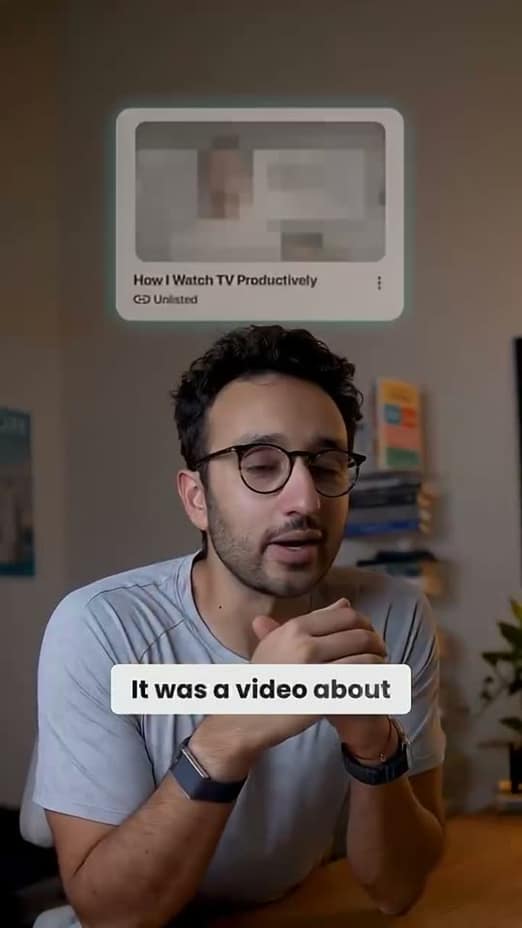
Why captions matter more on Reels than almost anywhere else
Reels are watched in feeds, in DMs, and in the Explore tab, and a large share of those views happen with the sound off. A widely cited Verizon Media and Publicis Media study found that 69% of people watch video with the sound off in public places. Instagram also auto-mutes Reels in some placements until the viewer taps. If your first two seconds are a talking head with no text, the viewer has no idea what you are saying and scrolls.
Captions fix that, but they do two other jobs as well. They make your content usable for deaf and hard-of-hearing viewers, and they give Instagram's systems text to understand what the video is about. Instagram has said that on-screen text and captions are signals it uses; treat that as "it helps at the margin", not as a ranking hack.
Method 1: Instagram's built-in Captions sticker
This is the right choice when you record inside the Instagram app, only post on Instagram, and want captions in under a minute. The steps below match the app in 2026; Instagram moves buttons around every few months, so if a label differs, look for anything called Captions in the sticker tray.
- Record or upload your Reel. Open Instagram, tap the plus button, choose Reel, and either record or pick a clip from your camera roll. Trim it before adding captions so the transcript matches the final cut.
- Open the sticker tray. On the editing screen, tap the sticker icon (the square smiley face) at the top.
- Choose Captions. Tap the Captions sticker. Instagram transcribes the audio automatically. It takes a few seconds for a 30-second clip.
- Pick a style and fix the text. Swipe through the four or so text styles, then tap any word to correct it. Check names, numbers, and anything the model could mishear.
- Position the sticker. Drag it into the middle-lower third of the frame, above where the caption text and buttons will sit. Pinch to resize.
- Post. Add your written caption and hashtags and share. The captions stay editable only until you post.
Where the Captions sticker falls short
- Styling is limited. You get a few presets, one colour choice, and no word-by-word animation. Every creator's captions look the same.
- It lives only on Instagram. Download the Reel and the sticker is gone, so a cross-post to TikTok or Shorts has no captions.
- Language coverage is narrow. Auto-captions work well in English and a handful of major languages; support beyond that is patchy.
- No translation. You cannot generate a Spanish caption track for an English video.
- Editing after posting is impossible. A typo means deleting and re-uploading, which resets your engagement.
Method 2: Burn animated captions in with an AI caption tool
Burned-in captions (also called open captions or hard subs) are rendered into the pixels of the video. Every platform shows them identically, they cannot be turned off, and the same file works on Instagram, TikTok, YouTube Shorts, LinkedIn, and in a DM. This is what most creators you see with kinetic, word-by-word captions are doing.
The example below uses captionrich, which runs in the browser and has a free plan that covers 3 videos a month up to 3 minutes each with no watermark. Other tools work on the same principle: upload, transcribe, style, export.
- Upload the clip. Open captionrich.com/edit in Chrome or Safari, on desktop or your phone, and drop in the video. There is nothing to install.
- Let the AI transcribe it. Transcription runs automatically and detects the language. Expect a 60-second clip to be ready in well under a minute. Accuracy is up to 99% on clean audio, lower with heavy background music or several people talking over each other.
- Pick a caption style. Choose from 40+ animated styles grouped as Minimal, Dynamic, Cinematic, Trendy, and Energy. For Reels, the Minimal and Dynamic styles read best at feed size; save the loud Energy styles for high-energy content.
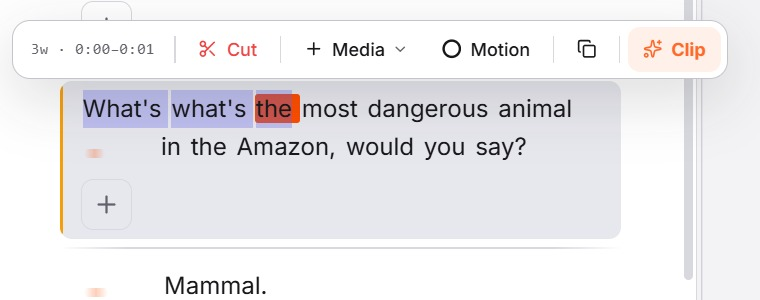
- Proofread by clicking words. The transcript is editable text. Click a word to fix spelling, split a long line, or emphasise a word with colour or an emoji. Deleting a sentence in the transcript also cuts that part of the video, which is handy for removing a flub.
- Move the captions into the safe zone. Drag the caption block so it sits in the middle-lower third of the 9:16 frame. Instagram's username, written caption, and audio label cover roughly the bottom 20%; the like, comment, and share buttons cover the right edge.
- Export and upload. Export a 9:16 MP4. Upload it to Instagram as a Reel like any other video. Because the captions are part of the file, skip the Captions sticker this time.
Where burned-in captions fall short
- One more step. You leave the Instagram app, which adds two or three minutes per video.
- They are permanent. A typo in a burned-in caption needs a re-export. Proofread before you export, not after.
- Viewers cannot turn them off. For most short-form content that is the point, but a cinematic piece may look cleaner without them.
Instagram Captions sticker vs burned-in captions
| Feature | Captions sticker | Burned-in (AI tool) |
|---|---|---|
| Time per Reel | About 1 minute | About 3 minutes |
| Cost | Free | Free tier (3 videos/mo) or from $7/mo |
| Styles | A few presets | 40+ animated, word-by-word |
| Works on TikTok / Shorts too | No | Yes, same file |
| Translation | No | Yes, 50+ languages |
| Edit after posting | No | No (re-export) |
| Best for | Quick in-app posts | Cross-posting, brand consistency |
Caption rules that actually move retention
- Two lines, max five or six words each. Anything longer becomes a wall of text on a phone.
- Time to the word, not the sentence. Word-by-word highlighting pulls the eye along at your speaking pace.
- Make the hook readable in the first second. The first caption should appear the moment you start talking, before the viewer decides to swipe.
- Emphasise sparingly. One coloured or enlarged word per sentence draws attention; five just looks noisy.
- Use a heavy sans-serif with a stroke or backing. Thin fonts disappear over bright footage.
- Stay in the safe zone. Middle-lower third, away from the right edge.
- Proofread proper nouns. Transcription models are excellent at everyday speech and unreliable with brand names.
Frequently asked questions
- Does Instagram automatically add captions to Reels?
- Only if you add the Captions sticker while editing, or if a viewer has turned on auto-generated captions in their own settings. Instagram does not burn captions into your uploaded video for you.
- Why did my captions disappear when I downloaded my Reel?
- The Captions sticker is an Instagram overlay, not part of the video file. To keep captions in the downloaded file, burn them in with a caption tool before uploading.
- What size and aspect ratio should a captioned Reel be?
- 9:16 at 1080×1920 pixels. Keep captions inside the middle-lower third of the frame so Instagram's username, description, and buttons do not cover them.
- Can I add captions to a Reel after posting?
- No. Neither the Captions sticker nor burned-in captions can be added or edited after a Reel is published. You would need to delete and re-upload.
- How accurate are automatic captions?
- Modern speech-to-text models reach up to 99% on clear single-speaker audio. Accuracy drops with loud music, crosstalk, heavy accents, and brand names, so always proofread those.
- Is there a free way to add animated captions to Reels?
- Yes. captionrich's free plan includes 3 videos a month up to 3 minutes each with no watermark, all 40+ caption styles, and transcription in 50+ languages.