How to add B-roll to a video: manual placement, layouts, and auto B-roll
By captionrich team · Published November 16, 2026 · 12 min read
To add B-roll to a video, find the moments where you name something the viewer could see, get a clip or image of it (your own footage, or free stock from Pexels, Pixabay, or Unsplash), and place it over those words for a few seconds while your voice keeps playing. In a timeline editor the clip goes on the video track above the main footage. In a text-based editor you select the words and insert media on them. Auto B-roll tools read the transcript, choose the moments and the clips for you, and leave you to review the result.
What B-roll is
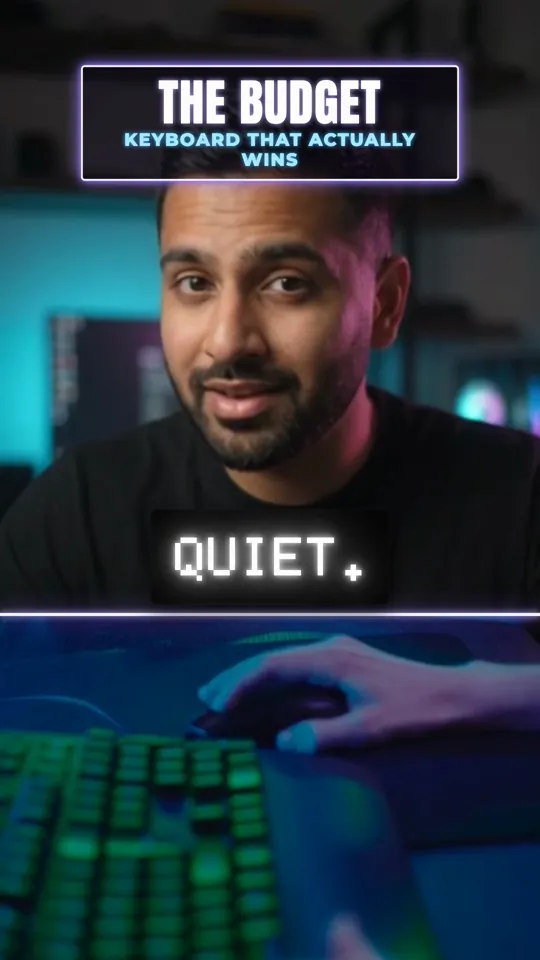
B-roll is any picture that is not the main shot. In a talking video the main footage, called the A-roll, is the person speaking. B-roll is what you cut to while they keep talking: a clip of the product, a street, hands on a keyboard, a screenshot, a photo. The voice does not change. Only the picture does.
It does three jobs. It shows what the words describe, so the viewer does not have to imagine it. It gives the eye a second picture in a video shot from one angle. And it hides edits: when a cutaway covers the point where two takes were joined, the viewer never sees the jump. B-roll is one step in a longer edit; the full order is in how to edit talking head videos.
When to use B-roll, and how much
One question decides most cases: can the viewer see the thing you are saying? If yes, B-roll helps. If the line is about what you think or feel, your face does more than any clip.
Where B-roll helps
- You name a concrete thing: a product, a tool, a place, a brand, an activity.
- You tell a story or give an example, the kind of line that starts with "picture this".
- You describe a process or an action that is easier to watch than to hear.
- You need to cover a cut in the main footage.
Where it hurts
- The opening seconds. The viewer is still working out who is talking, so stay on the face.
- A direct question to the viewer.
- Opinions, emotion, and emphasis. The delivery is the content.
- Abstract reasoning with nothing to show. A loosely related clip distracts more than it explains.
- Linking lines such as "so let's get into it".
How much
There is no correct count, and we will not invent one. The amount follows the script. A video about places, objects, and events can take a cutaway every few seconds. A video built on argument or personal experience needs only a few. As a starting point, these are the rules captionrich's own automatic placement follows:
- Each cutaway lasts 2 to 4 seconds. It illustrates a phrase, not a whole sentence.
- Nothing is placed in the first 3 seconds.
- Two cutaways never start less than 3 seconds apart.
- A cutaway that would only be decoration is dropped.
These are defaults, not laws. Hold a clip longer when the footage is the point, such as a product demo or a screen recording.
Where to get B-roll
Your own footage
The best B-roll is footage nobody else has: your product in use, a recording of your screen, your workspace, your photos, a screenshot of the thing you are talking about. If you can, shoot it in the same session as the main recording. Hold each shot for longer than you think you need, and frame it in the same orientation as the final video, so a vertical video gets vertical B-roll.
Free stock footage and photos
For general subjects, three large free libraries cover most needs: Pexels and Pixabay for video and photos, and Unsplash for photos. Each publishes its own license. When we read them on 16 November 2026, all three said the media is free to use and that attribution is not required, and each set limits. Pexels, for example, does not allow selling unaltered copies, implying that people or brands in the footage endorse your product, or showing identifiable people in a bad light. Licenses change, so read the page for the site you use: the Pexels license, the Pixabay license summary, and the Unsplash license.
Stock has limits you should plan around. The libraries hold generic footage: people, places, objects, activities, hands, screens. They do not have your product, your app, or footage of an abstract idea. Search with one or two concrete nouns. "Treadmill" finds better matches than "person running on a treadmill in a gym", because every extra word narrows the results.
captionrich has free stock media search inside the editor: videos from Pexels and Pixabay, photos from Pexels, Pixabay, and Unsplash, and GIFs from GIPHY. You do not need accounts on those sites, and you can mix stock with your own uploads in one project.
A graphic instead of footage
Some lines have no footage to match: a number, a comparison, a list of three steps. A title card or an animated graphic shows those better than a loosely related clip. In captionrich that is the job of motion graphics, which builds titles, stat callouts, quotes, and lists in one of 18 styles. It is a paid feature.
How to add B-roll manually
In a timeline editor
The method is the same in Premiere Pro, DaVinci Resolve, CapCut, and other timeline editors. Only the names of the tools differ.
- Find the phrase. Play the main footage and note where the phrase you want to illustrate starts and ends.
- Place the clip above the main footage. Import the B-roll and put it on the video track above the main recording, starting where the phrase starts. The upper track is what the viewer sees.
- Trim it to the phrase. Pick the best few seconds of the clip and trim the rest. End on the end of the phrase, not in the middle of a word.
- Mute its audio. Stock clips and phone footage carry their own sound. Mute it, or lower it a long way, so the voice stays clear.
- Fit it to the frame. If the clip has a different shape from the video, scale and reposition it so it fills the frame, or leave it whole on a background.
- Check it after every re-cut. If you cut the main track later, make sure each B-roll clip still sits over the words it illustrates.
In a text-based editor
A text-based editor shows the video as a transcript, so you place B-roll on words instead of on a timecode. In captionrich:
- Select the words. Highlight the phrase in the transcript that the footage should cover.
- Open the Media menu. Choose Search B-roll for stock video, Search Image, Search GIF, or Upload from device for your own file. You can also paste an image.
- Pick a clip. Search by keyword, filter by landscape or portrait, preview the result, and insert it. It lands on the words you selected.
- Adjust it. Select the B-roll to open its panel, where you can replace it or change its layout, animation, transition, and sound effect. Drag it on the timeline to move or trim it.
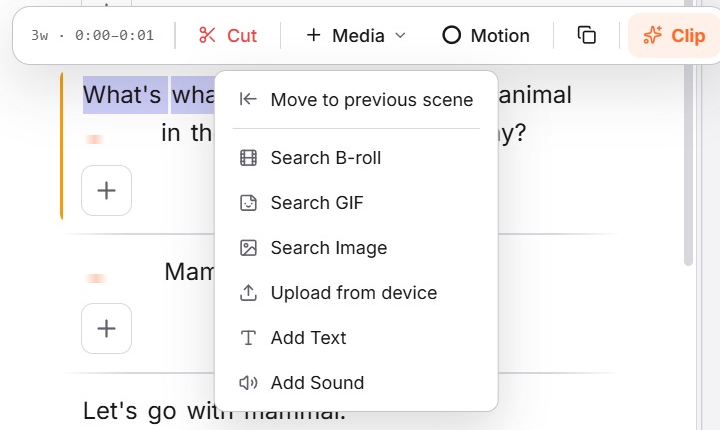
Because the clip is attached to the words and not to a position on the timeline, it stays over the same sentence when you cut earlier parts of the video. Stock search and manual B-roll work on the Free plan.
How automatic B-roll placement works
Auto B-roll and AI B-roll tools all do some version of the same thing: read what is said, decide where a cutaway helps, and find a picture for it. We can only describe one in detail, so here is what captionrich's Auto B-Roll does when you turn it on.
- It reads the transcript as played. The words are sent to an AI model in short timed windows, after your cuts, so it judges the video the viewer will see.
- It picks the moments. The model returns only the places where a thing, a place, or an action is named. For each one it gives the word to anchor on, a search keyword of one or two words, a short description of the ideal shot, a media type (video, image, or GIF), and a score for how much the cutaway helps. Low scores are dropped.
- It searches stock. The keyword is searched in the same libraries as manual search: Pexels and Pixabay for video, those two plus Unsplash for photos, and GIPHY for GIFs.
- It chooses the clip. A second pass compares the descriptions of the search results with the shot that was wanted and picks the closest. If nothing in the results shows the subject, the cutaway is dropped. A wrong clip is worse than staying on the speaker.
- It places the clip. The clip goes on the anchor word for 2 to 4 seconds. It fills the frame when its shape matches the video, and sits in a rounded card when it does not. Moments already covered by a motion graphic are skipped.
- You review. Every insertion stays editable. Replace the clip, move it, trim it, change its layout, or delete it.
Treat the result as a first pass. Watch the video once, replace the clips that miss, and remove any cutaway that takes the picture away from a line that needed your face.
B-roll layouts: full screen, split screen, and picture in picture
A full-screen cutaway hides the speaker. That is right when the footage is the point, and wrong when the viewer should still see who is talking. The other layouts share the frame. These are the layout groups in captionrich, with the names used in its layout picker:
| Layout | What the viewer sees | Use it when |
|---|---|---|
| Full screen (Fill) | The B-roll fills the frame and its edges are cropped | The footage is the point and has roughly the shape of the video |
| Fit, Card, Square | The whole clip, uncropped, on a blurred backdrop | The clip has a different shape, such as a landscape clip in a vertical video |
| Split screen (Split, Split 35/65, Framed, You on top) | The B-roll and the speaker each get part of the frame | The speaker is explaining or reacting to what is shown |
| Picture in picture (Corner top, Corner bottom, Bubble) | The B-roll fills the frame and the speaker sits in a small card or circle | A demo or screen recording needs most of the frame |
| Band (Band, Glow band, Torn band, Soft band) | The B-roll runs across the bottom while the speaker stays in place | You want a short visual accent without leaving the speaker |
Splits stack top and bottom on vertical and square videos, and sit side by side on landscape ones. With Auto Layout switched on, captionrich picks a layout from the shape of the media you add. In a vertical video, a landscape clip gets the smaller part of a 35/65 split, a square one gets half the frame, and a vertical clip plays full screen with you in a corner card. Captions move so that a split or a band does not cover them.
In a timeline editor you build these by hand. For a split, crop and position the two layers so each takes its share of the frame. For picture in picture, put the speaker on the upper track, scale it down, and move it to a corner that does not hide what the B-roll is showing.
B-roll mistakes to avoid
- Covering the opening line. The viewer needs to see who is talking before you cut away.
- A clip that does not match the words. A keyword with an everyday second meaning returns the wrong footage: a search for "framework" in a coding video brings back steel buildings. If the right clip does not exist, use none.
- Arriving late. The picture should appear on the word that names it, not a second after.
- Flashes and long holds. A cutaway of under two seconds is hard to read, and one that outlasts its phrase leaves the viewer watching footage that no longer matches the words.
- Leaving the clip's sound on. Background audio from the B-roll competes with the voice.
- Hard-cropping the wrong shape. A landscape clip cropped to fill a vertical frame often loses its subject. Show the whole clip in a card, or use a split.
- Wall-to-wall B-roll. If the speaker is hidden for most of the video, the viewer loses the person they came to hear.
- Stock for something only you can show. A generic laptop clip does not show your app. Record your screen.
- Skipping the license. Free libraries still have terms. Read them before you use a clip in an ad.
When a timeline editor is the better tool for B-roll
Placing B-roll on words works when speech drives the video. Use a timeline editor instead when:
- The B-roll is the story. A montage, a travel sequence, or a product reel with little speech has no transcript to anchor to.
- You are cutting to music. Timing each shot to a beat is frame-level work.
- The video is long. The captionrich editor takes videos up to 3 minutes on Free, 4 minutes on Pro, and 7 minutes on Max Pro.
- You are switching between several cameras. Syncing and choosing between angles is a timeline job.
- You want generated footage. Auto B-Roll places stock. If you need a shot that no library has, film it or use a video generation tool, then upload the result as your own B-roll.
Frequently asked questions
- What is B-roll in a video?
- B-roll is any footage or image shown in place of, or beside, the main shot while the main audio keeps playing. In a talking video the speaker is the A-roll and the cutaways to products, places, screens, or photos are the B-roll.
- How long should a B-roll clip be?
- Long enough to read and no longer than the phrase it illustrates. captionrich's automatic placement keeps each cutaway between 2 and 4 seconds. Hold a clip longer when the footage is the point, such as a demo or a screen recording.
- How much B-roll should a video have?
- It depends on the script. A video that names many concrete things can take a cutaway every few seconds, and an opinion piece needs only a few. Keep the speaker on screen for the opening line, direct questions, and moments of emphasis.
- Where can I get free B-roll?
- Pexels and Pixabay offer free stock video and photos, and Unsplash offers free photos. Each has its own license page, which you should read before commercial use. Your own footage, screen recordings, and screenshots are often better because nobody else has them.
- What is auto B-roll or AI B-roll?
- A tool that reads the transcript of a video, decides which moments would benefit from a cutaway, finds matching footage, and places it for you. captionrich's Auto B-Roll uses stock video, photos, and GIFs. It does not generate new footage.
- Is Auto B-Roll free in captionrich?
- No. Auto B-Roll uses AI credits, which are included in the Pro and Max Pro plans. On the Free plan you can still search the stock libraries and add B-roll to selected words by hand.
- Can I use my own footage as B-roll?
- Yes. In captionrich, choose Upload from device in the Media menu or paste an image. In a timeline editor, import the file and place it on the track above the main footage.