The best AI caption generators for short videos, compared
By captionrich team · Published November 26, 2026 · 11 min read
The best AI caption generator depends on the job. For styled captions on short talking videos, with cuts and zooms in the same editor, captionrich and CapCut both have free plans that export without a watermark. For the most languages and translation, look at VEED, Zeemo or Kapwing. For long recordings and subtitle files, Descript. For editing on a phone, CapCut or Captions. For shorts cut from a long video, Opus Clip. For many ready-made animated templates, Submagic.
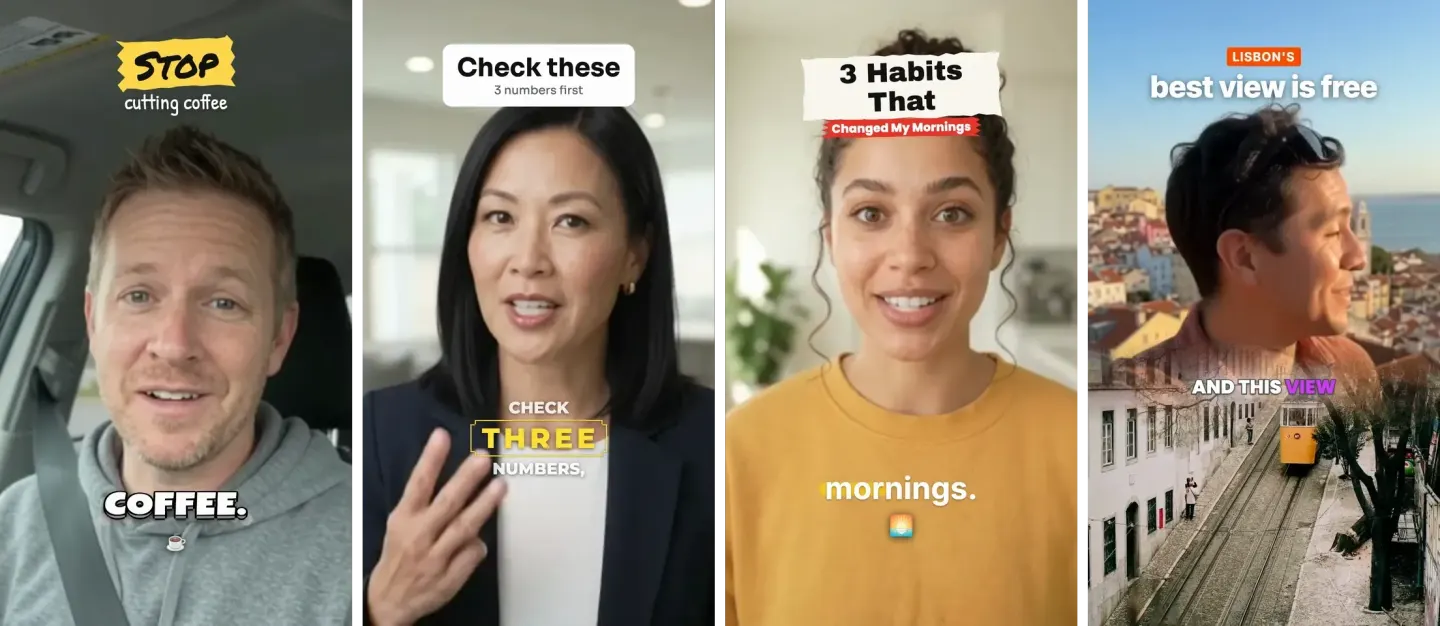
An AI caption generator listens to the speech in your video, writes it down with a timestamp on every word, and draws those words on screen as captions. The differences between tools are in everything around that: how the captions look, whether you can fix a word in one click, what the free plan stamps on your export, whether you get a subtitle file, and which languages it hears.
This list compares nine tools that people weigh up for captions on short talking videos (TikTok, Reels, Shorts, LinkedIn). The facts come from each vendor's own pricing and help pages, linked in each section and checked on the date shown at the top of this page. We have not run a scored test of every app, so there are no accuracy rankings here. Plans and prices change often, so treat any limit below as something to confirm before you pay.
Which AI caption generator should you pick?
Start from what you make and where you post it. The tools below overlap, but each one is built around a different job.
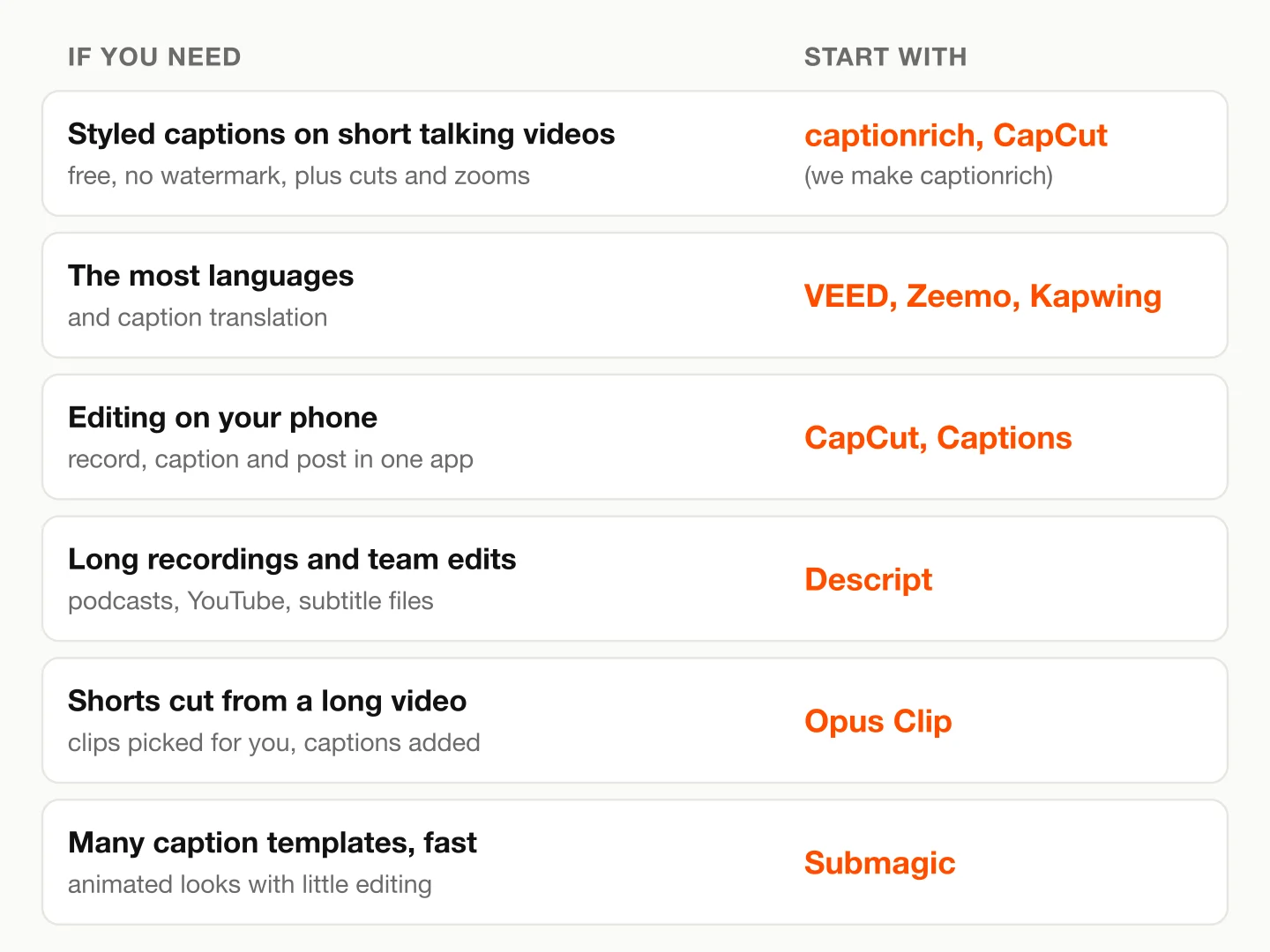
- captionrich: a browser editor for short talking videos, where captions, cuts and zooms come from one transcript.
- CapCut: a full editor on phone, desktop and web, with auto captions as one feature among many.
- Submagic: animated caption templates plus quick extras such as auto zoom and B-roll (footage shown over the speaker).
- Captions: a phone-first app with a camera, teleprompter and AI editing.
- VEED: a browser editor with subtitles, translation and team features.
- Descript: text-based editing for podcasts and long recordings.
- Kapwing: an all-round online editor with subtitles, translation and dubbing.
- Zeemo: a captions and translation tool with a long language list.
- Opus Clip: a clipper that cuts a long video into shorts and captions them.
AI caption generators compared: free plans, watermarks, files and languages
Every cell comes from the vendor's own pricing or help page (linked in the sections below). Where a vendor does not say, the cell says so. Language figures are the vendor's own and are not measured the same way: some count transcription languages, some count translation targets.
| Tool | Free plan | Watermark on free exports | Subtitle file export | Languages (vendor's figure) | Beyond captions | Best for |
|---|---|---|---|---|---|---|
| captionrich | 3 videos a month, up to 3 min each | No | SRT on every plan | 50+ | Text-based cuts, zooms, B-roll, AI cleanup | Short talking videos |
| CapCut | Free editor; some AI features have limited free uses | Only with Pro items, templates or the ending clip | SRT or TXT (desktop and mobile) | About 30+ for auto captions | Full timeline editor, effects, templates | People already editing in CapCut |
| Submagic | 15 credits once at sign-up (5 videos) | Yes | Not stated by vendor | Not stated by vendor | Auto zoom, B-roll, bad take and silence removal, clipping | Fast templated captions |
| Captions | One template, 60 to 200 lifetime credits | No | SRT option at export (plan not stated) | 100+ | Camera, teleprompter, AI edit, dubbing | Phone-first creators |
| VEED | Free plan; limits not listed on its pricing page | Yes | SRT, VTT, TXT on paid plans | 125+ for translation | Full browser editor, AI tools, teams | Teams working in many languages |
| Descript | 60 media minutes a month, 720p | Yes | SRT, VTT | 25 for transcription, 61 for translation | Text-based editing, recording, dubbing | Podcasts and long videos |
| Kapwing | 720p, exports up to 4 min, 10 min of auto subtitles | Yes | SRT, VTT, TXT | 100+ for translation | Online editor, silence removal, dubbing | Teams that need an all-round editor |
| Zeemo | 120 credits a year, videos up to 1 min, 720p | Yes | SRT, ASS on paid plans | 95 for captions, 124+ for translation | Translation, AI image and video generation | Captions in many languages |
| Opus Clip | 9:16 clips, media kept 3 days | Yes | SRT on Pro (per its help) | 20+, no right-to-left languages | Clip finding, reframing, posting to socials | Turning a long video into shorts |
The 9 caption generators, one by one
1. captionrich
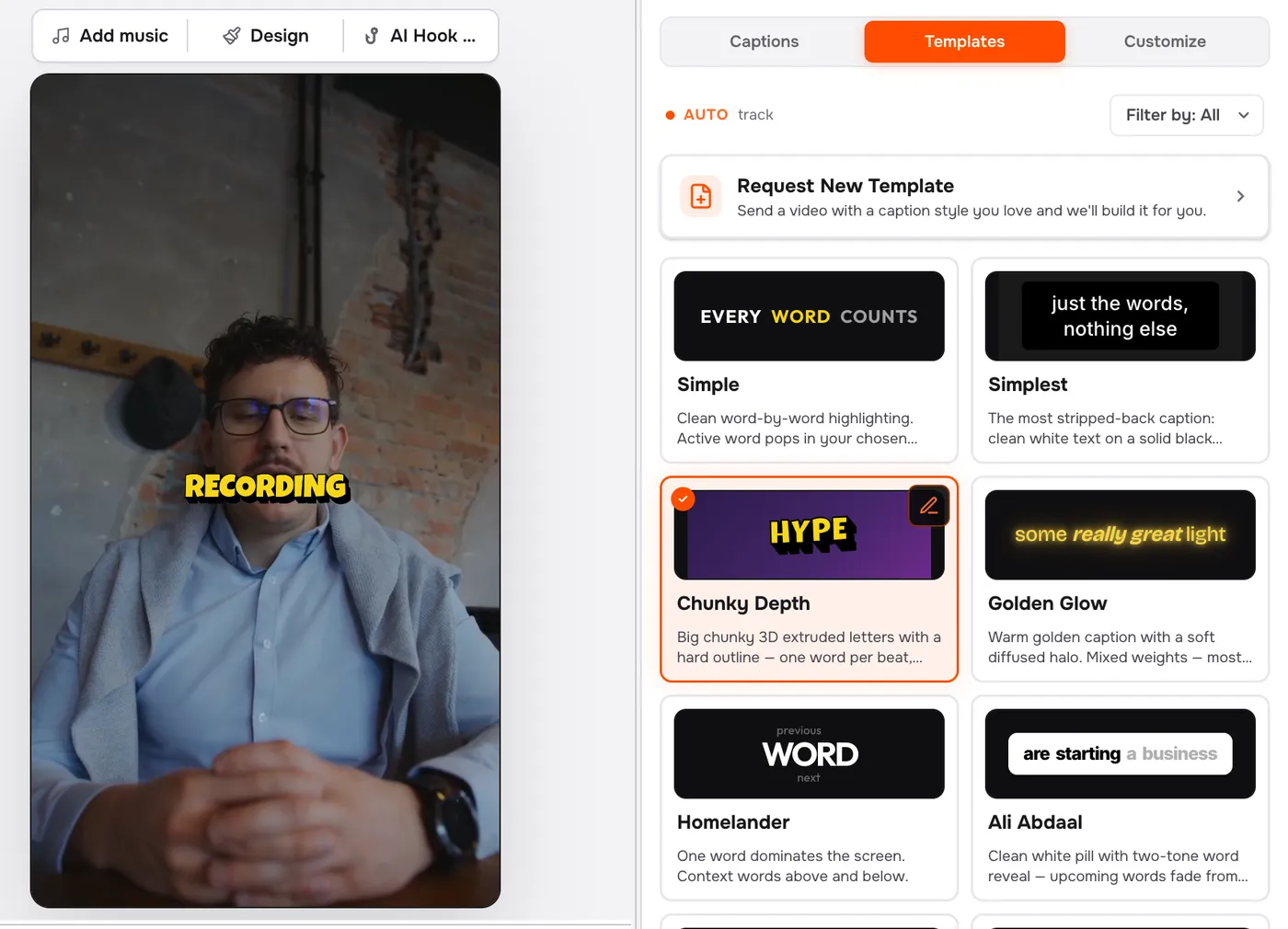
Best for: short talking head videos where you want styled captions and the edit in one place. In captionrich the transcript is the editor: delete a sentence and that footage is cut, and the auto captions follow every cut. There are 40+ animated caption styles, you can fix or restyle any single word, and zooms, B-roll and Remove Silences live in the same project. It runs in the browser on a computer or a phone.
Free plan: 3 videos a month, up to 3 minutes each, no watermark, and every plan can download the captions as an SRT file. Drawbacks: the editor takes videos up to 3, 4 or 7 minutes depending on the plan, so it is not for full-length YouTube videos. Transcription covers 50+ languages, fewer than VEED or Zeemo list. The AI tools (filler word removal, translation, Auto B-Roll) need a paid plan, Free projects are not saved to the cloud, and there are no team seats.
2. CapCut
Best for: people who already edit in CapCut. It is a full editor with a timeline, effects and templates on phone, desktop and web, and auto captions are one feature inside it. CapCut's help says captions can be exported on their own as SRT or TXT by choosing Caption Export instead of Video Export on desktop and mobile.
Drawbacks: its help puts auto-captioning at about 30+ languages, fewer than most tools here. CapCut also says some features allow only a few free uses and that the limits vary. Free exports are clean by default, but CapCut's own help says templates, Pro effects and its ending clip add a watermark or logo unless you remove them or subscribe. See how captionrich compares with CapCut.
3. Submagic
Best for: creators who want a ready-made animated caption look plus quick extras without much manual editing. Its pricing page lists caption templates, auto zoom, B-roll, removal of bad takes and silences on its higher plans, and clipping of long videos.
Drawbacks: the free plan is a one-time grant, not a monthly allowance: Submagic's help says 15 credits at sign-up, which covers 5 videos, and exports carry a watermark. Paid plans cap video length by tier (2 minutes on Starter, 5 on Pro, 30 on Business), and the pricing page does not mention subtitle file export. Compare it in captionrich vs Submagic.
4. Captions
Best for: recording and editing on your phone. Captions is built around a mobile app with a camera, teleprompter and AI editing, and its export settings include an option to download the captions as a separate SRT file. Its pricing page lists captions in 100+ languages.
Drawbacks: the Free plan includes one caption template and 60 to 200 lifetime credits, with no watermark, but using features outside the free list asks you to upgrade, and most AI features need a subscription to export. Usage on paid plans is counted in credits. See captionrich vs Captions.
5. VEED
Best for: teams that want a broad browser editor with subtitles and translation. VEED says its subtitle editor can translate into 125+ languages, and you can upload SRT or VTT files and download subtitles as SRT, VTT or TXT.
Drawbacks: VEED's help says free-account exports carry a VEED watermark, and its subtitle editor page says downloading the subtitle file needs a paid plan. Plans are priced per seat, and translation minutes count toward your plan's allowance. See captionrich vs VEED.
6. Descript
Best for: podcasts, long recordings and teams. Descript made editing by transcript popular, and it exports subtitles as SRT or VTT with settings for maximum characters per line and lines per caption.
Drawbacks: its pricing page lists transcription in 25 languages (caption translation covers 61), fewer than most tools here. The Free plan includes 60 media minutes a month and 720p exports, and watermark-free export is not included. See captionrich vs Descript.
7. Kapwing
Best for: teams that want one online editor for many kinds of video. Kapwing's subtitles page offers SRT, VTT and TXT downloads and translation into 100+ languages, and its editor includes silence removal and dubbing.
Drawbacks: on the Free plan, exports carry a watermark, are capped at 720p and 4 minutes, and auto-subtitling is limited to 10 minutes. Paid plans run on monthly credits. See captionrich vs Kapwing.
8. Zeemo
Best for: captions and translation across many languages. Zeemo's pricing page lists captions in 95 languages and translation into 124+, plus SRT and ASS subtitle files on paid plans.
Drawbacks: the free plan is small: 120 credits a year, videos up to 1 minute or 200 MB, 720p exports and files kept for 3 days. Watermark removal and subtitle files are listed only on paid plans. It is a caption tool first, so expect fewer editing tools than in a full editor. See captionrich vs Zeemo.
9. Opus Clip
Best for: turning a long video or podcast into short clips without picking the moments yourself. Captions come with the clips, and its pricing page lists posting to social apps on paid plans, and export to Premiere Pro or DaVinci Resolve on Pro and Business.
Drawbacks: Opus Clip says it supports 20+ languages and no right-to-left languages, such as Arabic or Hebrew, and documents SRT download as a Pro feature. The free plan exports 9:16 only, with a watermark on caption templates, and media expires after 3 days. It is built for clipping, not for captioning a video you already edited. See captionrich vs Opus Clip.
Burned-in captions or a subtitle file: which do you need?
Burned-in (or open) captions are drawn into the video pixels. They look the same on every app and cannot be turned off, which is why short-form creators use them. A subtitle file, such as SRT or VTT, is plain text with timings that you upload next to the video; the player draws it, and viewers can switch it off.
You need a file when a platform reads captions as text (YouTube, many course platforms and players) or when an editor or client asks for one. The full trade-off is in open captions vs closed captions. If you only need a file and no styling, our free caption and subtitle generator transcribes on your device and downloads SRT or VTT without an account.
How to choose an AI caption generator: a checklist
Run the same 60-second clip through your two or three finalists and check these points. It takes less time than reading another review.
- Accuracy on your words. Check names, brand names, numbers and slang. These are where every speech-to-text model slips.
- Your language, in both directions. Confirm it is supported for transcription, not just translation. If you speak Arabic, Urdu or Hebrew, check that right-to-left text is supported.
- The free export. Export once on the free plan and look for a watermark or an ending logo.
- Length per video. Compare the plan's limit with your longest video.
- Burned-in or a file. If you need SRT or VTT, check which plan includes it.
- Fixing a word. You should be able to click a wrong word, type the fix and keep its timing.
- Style control. Font, colour, size, position, and highlighting one word, plus a way to keep captions clear of the app's buttons.
- How usage is counted. Videos, minutes or credits, and what happens when they run out mid-month.
- Where it runs. Phone app, desktop app or browser, and whether your projects are saved for later.
Do you need a caption app at all?
Not always. TikTok, Instagram and YouTube all generate captions for free. YouTube's automatic captions cover dozens of languages, and its help tells creators to review them for errors. Built-in captions are the better choice when you post to one platform, use its default look, and want viewers to be able to turn them off.
A caption generator earns its place when you want one styled file that looks the same on TikTok, Reels and Shorts, when you want control over each word, or when you also need cuts, zooms or translation. Step-by-step guides for the built-in route: TikTok auto captions and YouTube Shorts captions.
The bottom line
If you edit everything in one app already, try its captions first: CapCut, Descript and Kapwing all have them. If languages matter most, shortlist VEED, Zeemo and Kapwing and test your language. If you make short talking videos and want the captions, cuts and zooms to come from one transcript, try captionrich, and weigh that we are the ones saying so.
Frequently asked questions
- What is the best free AI caption generator?
- For short talking videos, captionrich's Free plan gives 3 videos a month up to 3 minutes each with no watermark, and CapCut's free editor exports clean unless you use Pro items, templates or its ending clip. If you post to one platform, its built-in auto captions cost nothing.
- Which caption apps export without a watermark on the free plan?
- Of the nine here, captionrich and Captions, and CapCut as long as you avoid Pro items, templates and its ending clip. Submagic, VEED, Descript, Kapwing, Zeemo and Opus Clip watermark free exports, according to their own pages.
- Which AI caption generator supports the most languages?
- By the vendors' own figures, VEED lists 125+ languages for translation, Zeemo 95 for captions and 124+ for translation, and Captions 100+. Vendors count languages differently, so test a clip in your own language before you choose.
- Can I download AI captions as an SRT file?
- Yes, in most of these tools. Descript and Kapwing export SRT and VTT, CapCut exports SRT or TXT, captionrich exports SRT on every plan, and VEED and Zeemo include subtitle files on paid plans.
- Are AI captions accurate enough to post without checking?
- No. Clear speech usually comes out close, but names, numbers, jargon and accents still trip every model. Read the captions once before you export.
- Do I need a caption app if TikTok and YouTube caption my videos?
- Only if you want a styled look that is the same on every platform, control over individual words, or editing and translation in the same place. For plain captions on one platform, the built-in tool is enough.