How to translate video subtitles without breaking the timing
By captionrich team · Published November 26, 2026 · 10 min read
To translate video subtitles, start from an accurate subtitle file in the original language, translate only the text lines while keeping every number and timestamp, then check that each translated caption still fits: no more than two lines, at a reading speed viewers can keep up with. On YouTube you can let viewers auto-translate your captions or upload your own translated SRT in YouTube Studio. For TikTok and Reels, burn translated captions into the video. Have a fluent speaker review the result before you publish.
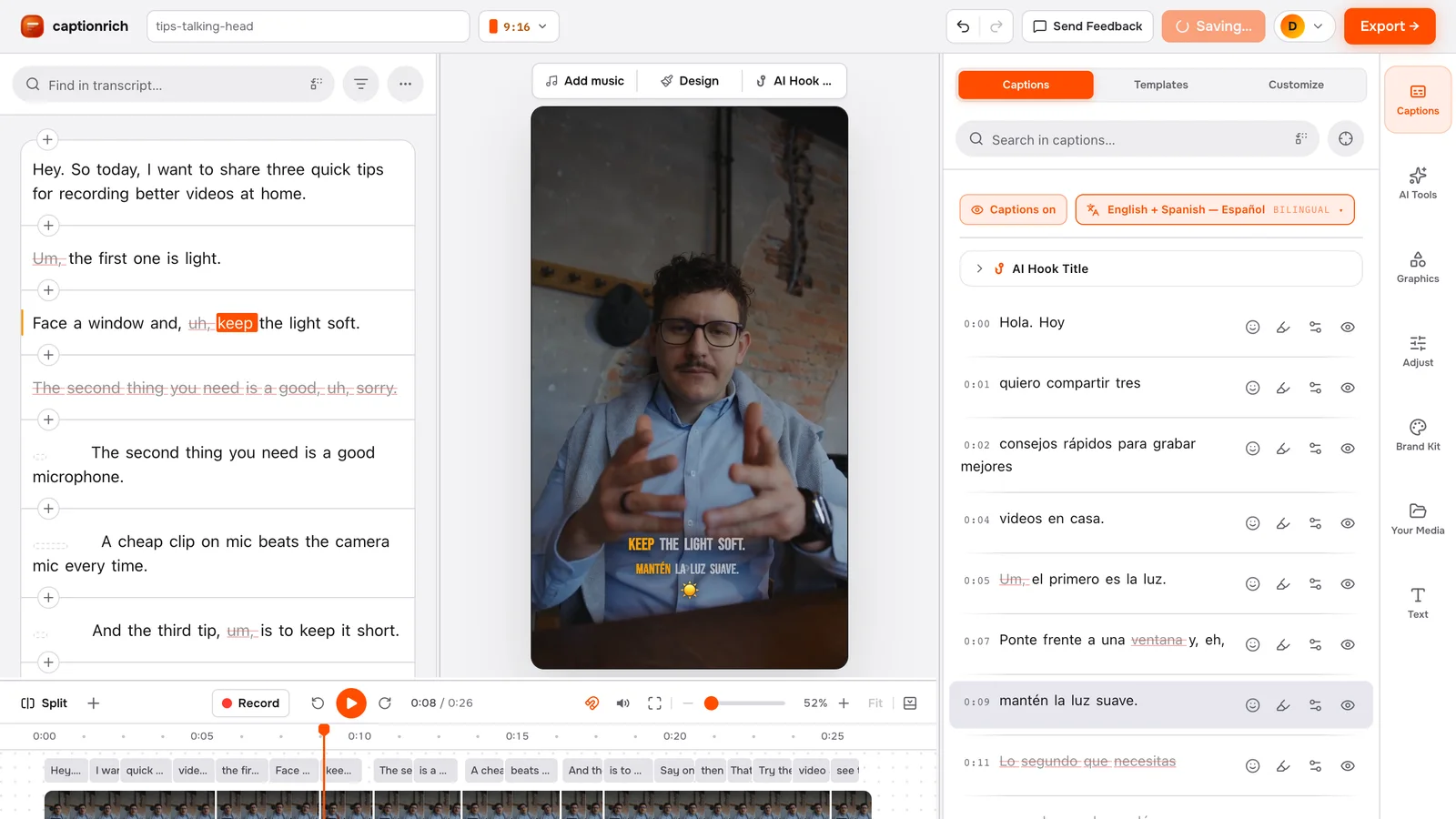
A subtitle file is a list of short text lines, each with a start and end time. Translating one sounds like a text job, but the timing is the hard part: the translated line has to fit the same few seconds on screen, and most translations are longer than the original. This guide covers the four practical ways to do it, what breaks, and the limits professional subtitlers work to.
Four ways to translate subtitles, compared
| Method | Who translates | You can edit it | Where it works | Best when |
|---|---|---|---|---|
| YouTube auto-translate | YouTube, when a viewer turns it on | No | YouTube only | You have accurate captions and no time |
| Translated track in YouTube Studio | You, with any tool | Yes | YouTube, and players that take SRT or VTT | You want control of the wording |
| Machine-translate the SRT file | A tool such as DeepL, then you | Yes | Anywhere that takes a subtitle file | You already have the file |
| Translated captions burned in | An editor's AI, then you | Yes, before export | Every app, TikTok and Reels included | Short-form video |
1. YouTube auto-translate (the viewer's side)
If your video has captions, viewers can ask YouTube to translate them on the fly. On the YouTube app, YouTube's caption settings help says: tap the player, tap Settings, then Captions, and if the language is not listed, tap Auto-translate and pick one. The menus differ a little on a computer.
It costs you nothing, and it is only as good as your original captions plus machine translation. You cannot see or fix the result, many viewers never find the setting, and it does nothing for the same video posted to TikTok or Instagram.
2. Upload a translated subtitle track in YouTube Studio
A translated track is a subtitle file in another language that you upload yourself. Viewers then see that language in the captions menu, and you control every word. YouTube accepts several formats, including SRT and WebVTT.
- Open the video's subtitles. In YouTube Studio, choose Subtitles in the left menu and pick the video.
- Add the language. Click Add language, choose the translation's language, then click Add under Subtitles.
- Upload the file with timing. Choose Upload file, then With timing, select your translated SRT and save. These steps follow YouTube's add subtitles help page.
- Watch it once. Play the video with the new track on and check a few long lines and the ending.
3. Translate an SRT file with a machine translation tool
If you already have an SRT, a machine translation tool gives you a fast first draft. DeepL lists SRT and VTT among the file types it translates; check which plan your account needs for file translation. Google Translate's document upload only takes .docx, .pdf, .pptx and .xlsx files, per its help page. Pasting a raw SRT into a text box also works, but the timing lines get treated as text too, so check that every number, comma and arrow comes back unchanged.
Don't have a file yet? Our free audio to SRT converter transcribes on your device and downloads SRT or VTT without an account. Then run the checklist further down before you upload the translation.
4. Translate the captions in a caption editor
For short-form video, the translation usually has to be burned into the picture, because apps such as TikTok and Instagram Reels have no place for a subtitle track. A caption editor translates the captions where they already sit, so the timing is kept for you. In captionrich, AI Translate works like this on the Pro and Max Pro plans:
- Click Translate in the Captions panel and pick a language. Each caption line is translated as a whole, for meaning rather than word for word, and the AI is told to keep names, brand names and numbers as they are.
- Every caption keeps its start and end time. Inside a caption, the translated words are timed by their length, because translated words do not line up one to one with the spoken ones.
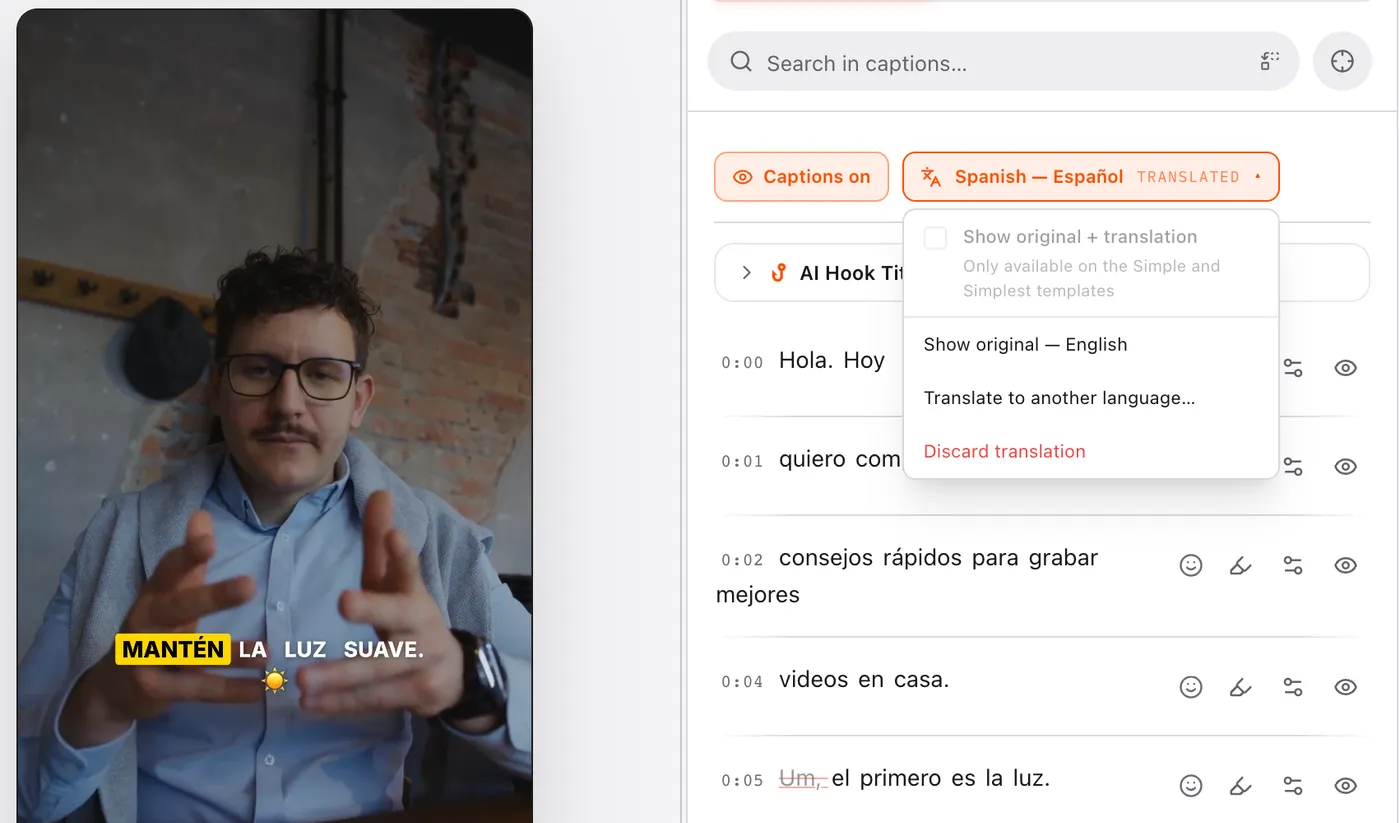
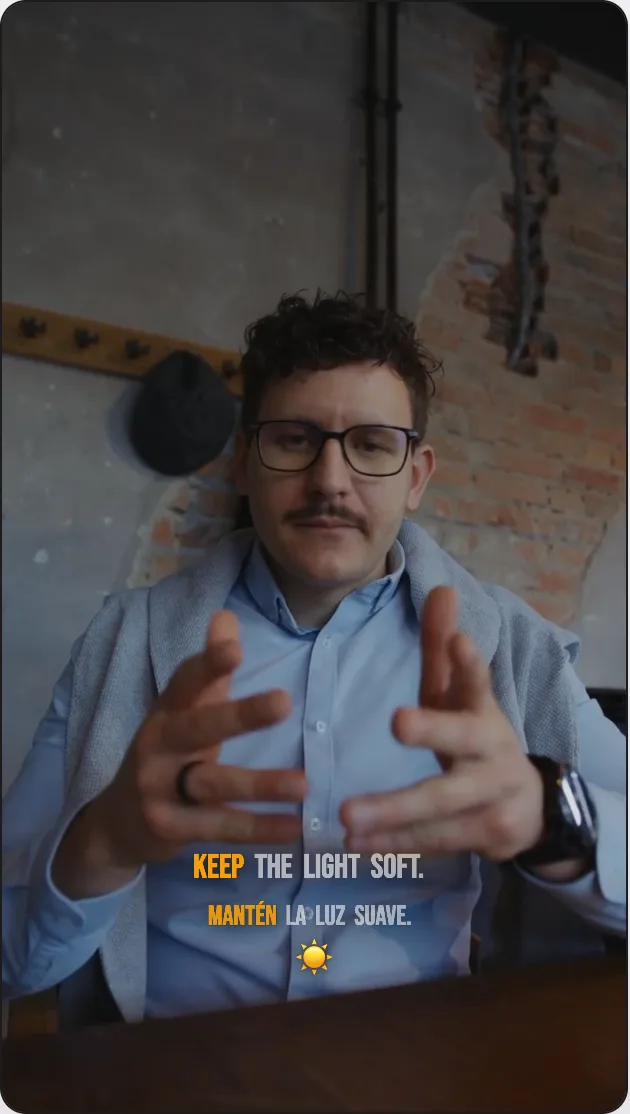
- Switch between the original and the translation at any time, or, in the Simple and Simplest caption styles, show both: original on top, translation below.
- Fix a translated word by clicking it in the Captions view. Arabic, Urdu, Hebrew and Persian translations switch to right to left with a font that has the letters.
- Export the video with the translated captions burned in, and download an SRT of the language on screen. With both lines showing, each SRT cue carries the original and the translation.
What breaks when subtitles are translated
Machine translation gets the words mostly right. What it does not check is whether those words still fit the screen and the seconds they have. These are the problems to look for:
- Line length. Most translations from English come out longer. A line that fit on one row now wraps to three, or covers the speaker.
- Reading speed. Viewers can read only so many characters per second, and the limit is lower for many languages than for English. A longer line in the same cue becomes unreadable.
- Timing. The cue's start and end stay fixed to the speech. You cannot stretch a caption past the next one, so the text has to get shorter instead.
- Line breaks. Breaks copied from the original fall in the wrong places. Rebreak each caption so each line reads as a phrase.
- Names and numbers. Brand names get translated, units get converted, and dates change format. Check every one.
- Direction. Arabic, Urdu, Hebrew and Persian need right-to-left text, and punctuation can land on the wrong end in some players. Our guide to Arabic, Urdu and Hindi captions covers the fixes.
- Regional variants. Spanish for Spain or Latin America, Portuguese for Brazil or Portugal, formal or informal address. Choose one deliberately.
A worked example shows how quickly this adds up. Take a 2.5-second English caption of 42 characters. At 20 characters per second it needs 2.1 seconds, so it fits. If the Spanish runs 140 to 160% of the English length (the published average for strings of 31 to 50 characters, in the table below), it becomes 59 to 67 characters, which needs 3.5 to 3.9 seconds at Spanish's 17 characters per second. The cue has 2.5.
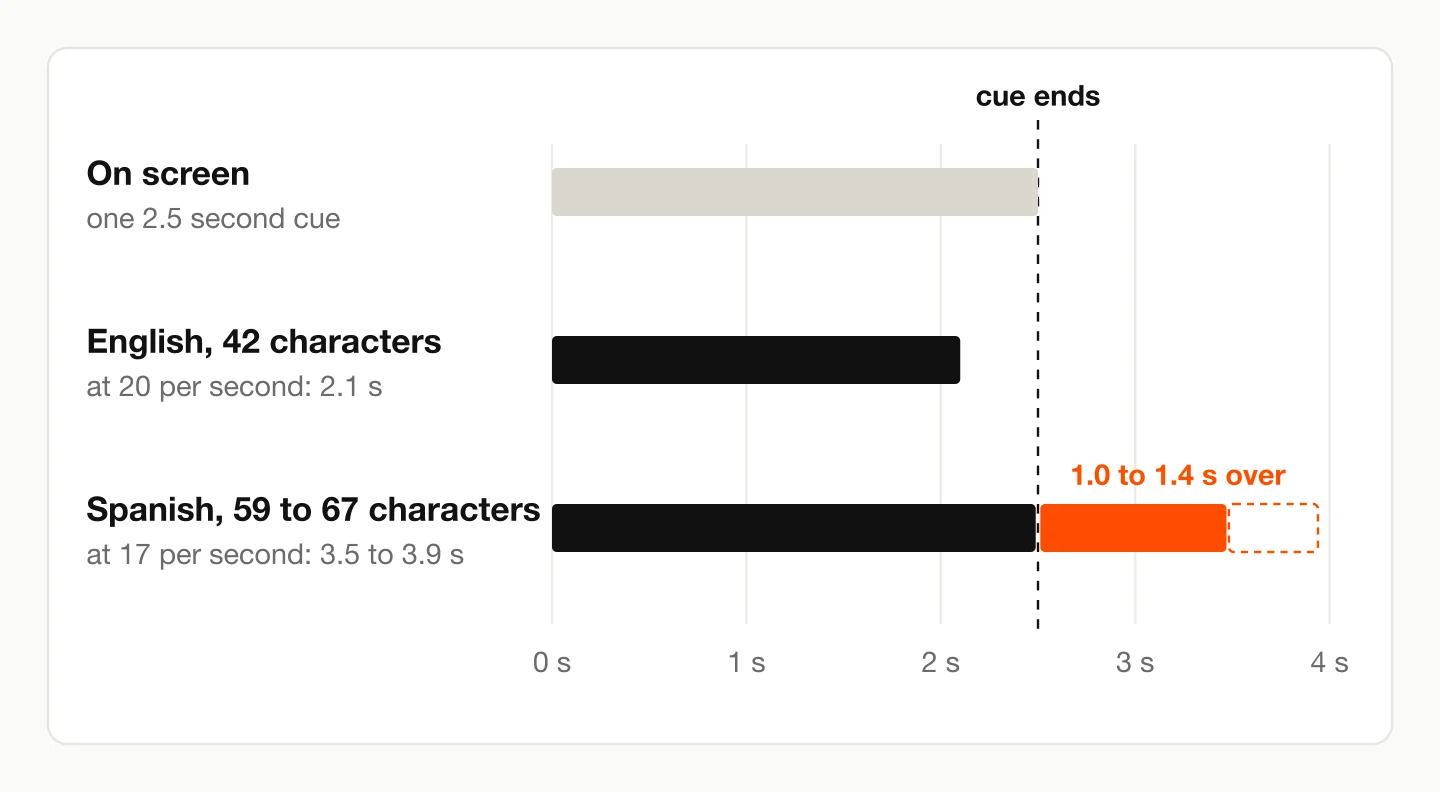
The fix is to say less: cut filler words, use the shorter synonym, drop what the picture already shows. Merge two cues only where the speech has no pause between them. Real sentences vary, so measure your own lines: the example at the top of this page grew from 45 to 51 characters, about 13%.
Text expansion and subtitle limits by language
Two reference tables for planning a translation. The first is the expansion guidance the W3C quotes from IBM for text translated from English into European languages. The second is the line length and reading speed limits Netflix sets for subtitles in its timed text style guides, a widely used professional benchmark. Social captions usually show fewer words at a time, so treat these as upper limits.
How much longer translated text gets
| Characters in the English source | Translated length (share of the English) | A line this long could become |
|---|---|---|
| Up to 10 | 200 to 300% | 8 characters: 16 to 24 |
| 11 to 20 | 180 to 200% | 16 characters: 29 to 32 |
| 21 to 30 | 160 to 180% | 25 characters: 40 to 45 |
| 31 to 50 | 140 to 160% | 42 characters: 59 to 67 |
Source: Text size in translation, W3C Internationalization, citing IBM's guidelines. Caption lines rarely pass 50 characters, so the rows for longer text are left out. The W3C also notes that short strings expand the most, and that many scripts, Arabic and Devanagari among them, need more line height than Latin text.
Subtitle limits professional guides set
| Language | Characters per line | Reading speed, adult programs |
|---|---|---|
| English (USA) | 42 | Up to 20 characters per second |
| Spanish | 42 | Up to 17 characters per second |
| Portuguese (Brazil) | 42 | Up to 17 characters per second |
| German | 42 | Up to 17 characters per second |
| Italian | 42 | Up to 17 characters per second |
| Arabic | 42 | Up to 20 characters per second |
| Hindi | 42 | Up to 22 characters per second |
| Japanese | 13 full-width characters (horizontal) | Up to 4 characters per second |
Source: each language's Netflix Timed Text Style Guide, linked in the table; the limits are for translated subtitles in adult programs, at most two lines per subtitle. The pattern that matters: English allows 20 characters per second, while Spanish, Portuguese, German and Italian allow 17, so a translation that is both longer and read more slowly has to be condensed.
SRT translation checklist
- Keep the original. Save a copy of the source SRT before you start.
- Translate text lines only. Cue numbers and timing lines (
00:00:01,000 --> 00:00:03,500) stay exactly as they are. - Count the cues. The translated file must have the same number of cues as the original.
- Keep the structure. One blank line between cues, and the timing line format unchanged, with a comma before the milliseconds.
- Save as UTF-8. It keeps accents and non-Latin letters intact.
- Check line length. At most two lines per caption, and about 42 characters per line for Latin-script languages.
- Check reading speed. Characters divided by seconds on screen should stay under the language's limit. Shorten the lines that go over.
- Keep names, brands, numbers and links as the speaker said them.
- Fix right-to-left lines for Arabic, Urdu, Hebrew and Persian.
- Name the file by language, for example
video_es.srt, so tracks do not get mixed up. - Review against the video with a fluent speaker, not just the text file.
What a fluent reviewer should check
A reviewer who only reads the file misses half the problems. Ask them to watch the video with the translated subtitles on and note anything that reads late, too fast, or off in tone. The common catches: jokes and idioms translated literally, terms that have an accepted local name, the wrong level of formality for the audience, and lines that say more than the speaker did. For course and training videos, give the reviewer a short glossary of your terms first, which is also useful for educators who publish in several languages.
If you cannot get a reviewer for every language, prioritise the languages with the most viewers, and keep the others to platform auto-translate, where viewers know they are reading a machine translation.
Frequently asked questions
- Can I translate an SRT file for free?
- Yes. Paste the text into a free machine translation tool or use one that accepts SRT files, then check that every timing line came back unchanged. Budget time to shorten lines that grew too long.
- Does translating subtitles change the timing?
- It should not. Keep every start and end time from the original. If a translated line is too long for its cue, shorten the text rather than moving the times.
- What is the difference between YouTube auto-translate and uploading translated subtitles?
- Auto-translate is machine translation that a viewer turns on, and you cannot edit it. An uploaded translated track is a file you control, and it appears in the captions menu for every viewer.
- How do I add translated subtitles to TikTok or Instagram Reels?
- Burn the translated captions into the video before you upload it, since those apps do not take a separate subtitle track. Export one video per language, or use bilingual captions with both lines on screen.
- Why are my translated subtitles too long?
- Most languages take more characters than English to say the same thing, and short lines grow the most. Condense the wording, or split the line into two cues where the speech has a pause.
- Is machine translation good enough for subtitles?
- As a first draft, often yes. Before publishing, have a fluent speaker watch the video with the subtitles on to catch wrong terms, literal idioms and lines that read too fast.