How to add captions to LinkedIn videos (auto, SRT and burned-in)
By captionrich team · Published November 26, 2026 · 9 min read
To add captions to a LinkedIn video, upload it and open the Captions option before you post. LinkedIn can generate auto captions in 10 languages, on desktop and in the app, and you can review and edit them before they go live. On desktop you can attach your own SRT caption file instead. Both are closed captions that viewers can hide. For captions that every viewer sees, in your own style, burn them into the video with an editor before you upload it.
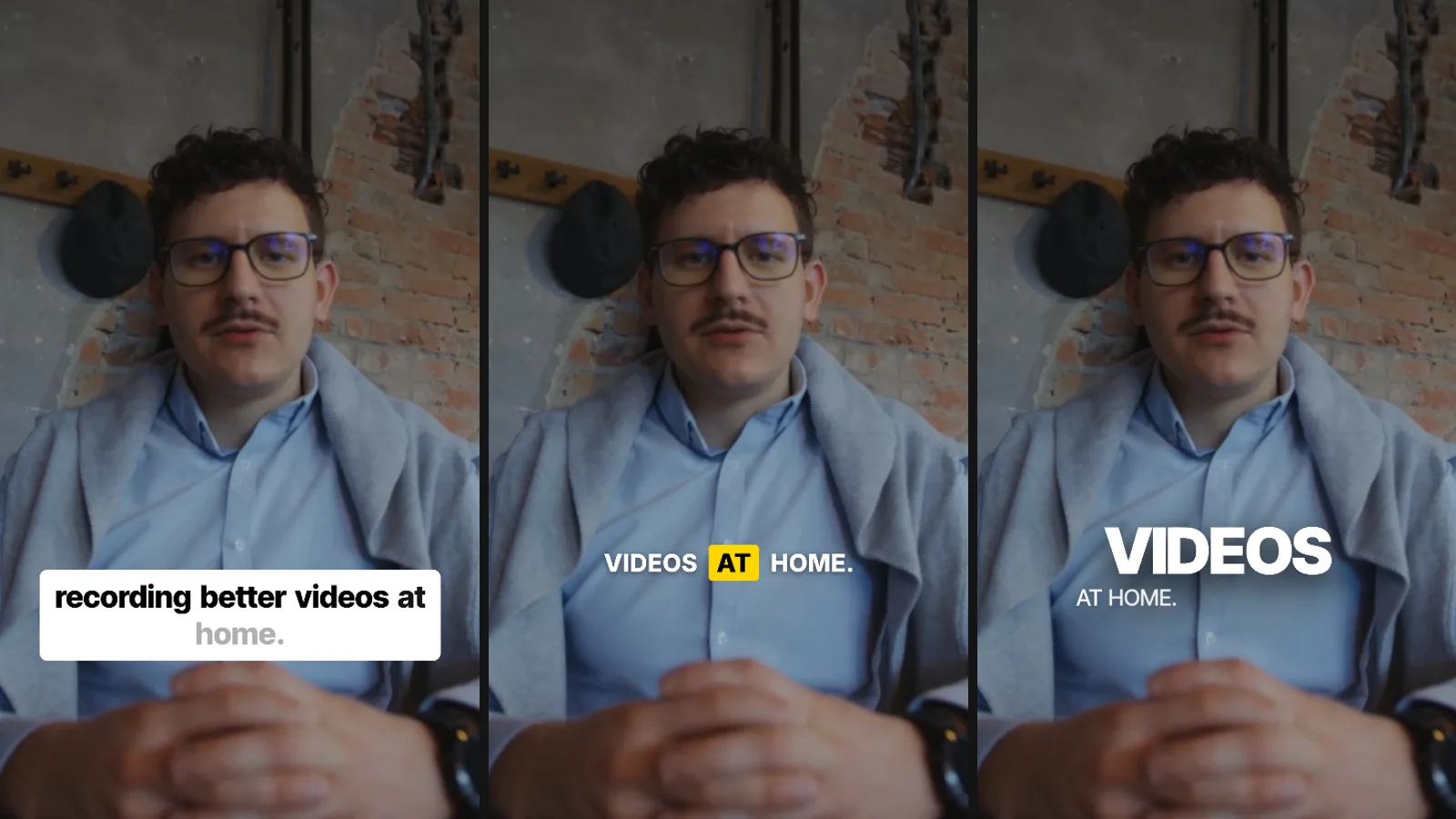
LinkedIn gives you two built-in ways to caption a video and one outside option, and they suit different people. Auto captions are the quickest. An SRT file gives you exact wording. Burned-in captions give you a look that every viewer sees, with the sound on or off. Each method below was checked against LinkedIn Help in November 2026; LinkedIn renames buttons now and then, so look for the closest match if a label has moved.
LinkedIn caption options compared
| Method | Where it works | File | Good | Watch out | Source |
|---|---|---|---|---|---|
| Auto captions | Desktop and mobile app; members and Pages | None: LinkedIn transcribes the audio | One toggle; review before posting; edit or remove later | 10 languages; can take a while to appear; LinkedIn's look; viewers can hide them | LinkedIn Help |
| SRT caption file | Desktop only; members and Pages | SRT | Your exact wording, names and terms | Not available in the app; attached while you post; plain look | LinkedIn Help |
| Captions on video ads | Campaign Manager; ad videos upload from desktop only | SRT, plain text only | Captions on sponsored video | No custom formatting such as font colours | Ad specs |
| Burned-in captions | Any upload: desktop, app, Pages, ads | None: the captions are in the MP4 | Seen by everyone with the sound off; your fonts, colours and animation | Cannot be hidden or corrected after posting | Made in your editor |
| Text tool | Mobile app only | None | A quick line of on-screen text | Typed and placed by hand; not a caption track | LinkedIn Help |
The first three are closed captions: a text track LinkedIn draws over the video and viewers can switch off. Burned-in captions are open captions: part of the picture. If the difference is new to you, our guide to open captions vs closed captions covers it, including which other platforms accept caption files.
How to turn on LinkedIn auto captions
LinkedIn says auto captions are available to all members and Pages and support English, Spanish, Portuguese, French, German, Italian, Indonesian, Turkish, Arabic and Dutch. On desktop:
- Start a video post. Click the Video icon in the share box at the top of your homepage, or post from your LinkedIn Page, and upload the file.
- Open the captions options. In the editor window, select Captions.
- Choose auto captions. Switch on Add auto captions to publish them as soon as they are ready, or switch on Review captions before viewers can see them to check them first. Then click Done and post.
- Review or edit. After posting, a banner under the post tells you when captions are ready. To fix a line later, click the More icon on the post, then Edit captions. You can also remove them there.
In the mobile app the toggles are the same, but the review option sends you to the LinkedIn website to approve the captions. LinkedIn also notes that captions can take some time to appear after the video is posted, so check back before you share the link widely.
How to upload an SRT caption file to a LinkedIn video
Use your own file when the wording has to be exact or the video is in a language auto captions do not cover. LinkedIn's closed captions page says the file must be an SRT (SubRip) file, that it is added on desktop, and that it works for personal accounts and Pages. It does not list language limits for SRT files.
- Make or export the SRT. Export it from your editor, or make one for free: the video to text converter transcribes a video in your browser and downloads an SRT, and the audio to SRT converter does the same from a separate audio recording.
- Upload the video on desktop. Click Video in the share box and select the file. Caption files cannot be added from the mobile app.
- Attach the file. Select Captions, then add a video caption file and choose your SRT. In older versions of the composer this sits under Edit, then Select Caption.
- Post and check. LinkedIn notifies you when the video has processed. Play it with captions on to check the timing.
An SRT file is plain text with numbered, timed lines. Save it as UTF-8, keep each caption to one or two short lines, and do not add styling: LinkedIn's ad specs say outright that formatting such as font colours is not supported, and SRT has no reliable way to carry it anyway.
How to add burned-in captions to a LinkedIn video
Burned-in captions are drawn into the video before you upload it. They show in the muted feed without anyone tapping a button, they look the same on desktop and mobile, and you can match them to your brand. The trade-off is permanence: a typo means re-uploading, so proofread first.
- Record with captions in mind. Speak in full sentences and pause between points. If you read from a script, a free teleprompter keeps your eyes near the lens, and a clean read gives a cleaner transcript.
- Upload to a captioning editor. In captionrich, open the editor and drop in the video. It is transcribed with a timestamp on every word. Fix names and terms by clicking the word.
- Pick a calm, readable style. Professional feeds suit clean sentence captions, such as Ali Abdaal style captions or Mask Slide, recoloured to your brand. Keep it to one or two short lines.
- Choose the shape. LinkedIn accepts aspect ratios from 1:2.4 to 2.4:1, so square (1:1), portrait (4:5), vertical (9:16) and landscape (16:9) all upload. Set the canvas shape in the aspect ratio menu before you place the captions; the export takes that shape. A clip recorded in another shape is shown whole with bars at the sides by default, so record in the shape you plan to post where you can.
- Turn LinkedIn's auto captions off for this post. In the Captions options, leave Add auto captions off, or viewers who keep captions on may see two sets.
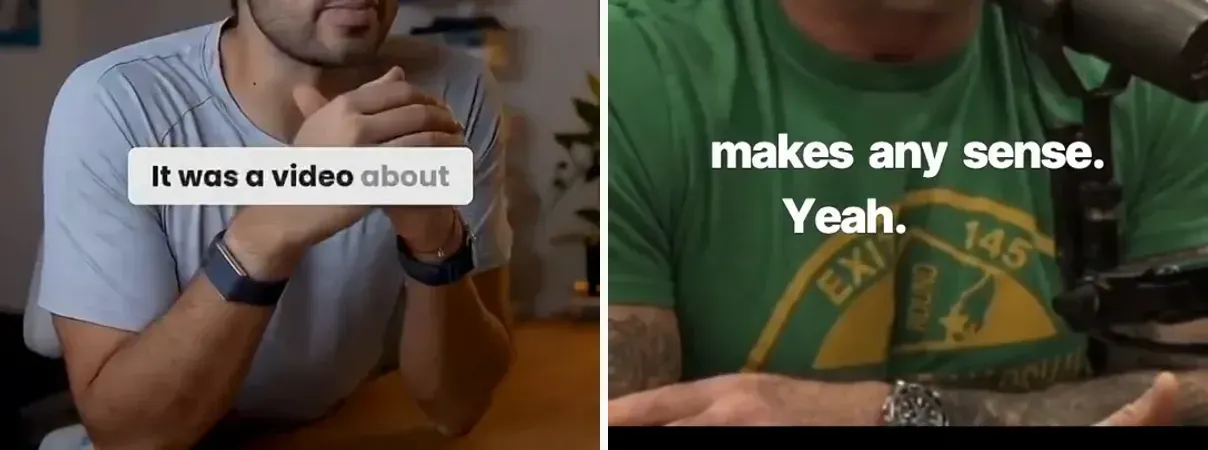
A note on length: the captionrich editor takes videos up to 3 minutes on the Free plan, 4 on Pro and 7 on Max Pro, while LinkedIn posts can run to 15 minutes. For a longer talk, use LinkedIn's auto captions or an SRT file, or caption it in a desktop editor. If you also want a caption track, captionrich's export screen has an Export captions (.srt) switch, so the burned-in captions and the SRT come from the same corrected transcript. The LinkedIn video page shows the rest of the workflow, including filler word and silence removal.
Why captions matter on LinkedIn
Three reasons, each from LinkedIn's own pages:
- The feed starts muted. LinkedIn's help says some videos may play automatically without sound as you scroll. Without captions, a talking head video says nothing until someone taps it.
- Most viewing is silent. In video ad research published in 2021, based on more than 3,500 ads analysed with the agency Digivizer, LinkedIn reported that 79% of videos in the LinkedIn feed are watched with the sound off, and that captions in the same language as the audio can help drive more social actions. The figure dates from 2021; LinkedIn's undated video ads guide still says almost 80% of users watch video ads with the sound off.
- Accessibility. LinkedIn lists captions among its accessibility features for video: viewers show or hide them with the captions icon on desktop, or with Hide closed captions in the app's More menu. Captions are how deaf and hard-of-hearing colleagues follow your video at all.
LinkedIn video specs for captioned videos
From LinkedIn's video sharing troubleshooting page for regular posts and its video ad specifications for ads, as of November 2026:
| Spec | Regular posts (members and Pages) | Video ads |
|---|---|---|
| Length | 3 s on desktop (2 s in the app) to 15 minutes | 3 s to 30 minutes; 15 to 30 s recommended |
| File size | 75 KB to 5 GB | 75 KB to 500 MB |
| File types | MP4, MOV, WEBM, MKV, AVI and others | MP4, H.264 or VP8 |
| Aspect ratio | 1:2.4 to 2.4:1 | 16:9, 1:1, 4:5 or 9:16 |
| Resolution | 256 x 144 to 4096 x 2304 | Up to 1920 x 1080 (16:9), 1920 x 1920 (1:1), 1080 x 1350 (4:5), 1080 x 1920 (9:16) |
| Frame rate | 10 to 60 fps | Under 30 fps |
| Captions | Auto captions, or an SRT file on desktop | SRT, plain text only |
LinkedIn's older help page for Pages still lists a 10-minute limit and says MOV and AVI are not supported, which conflicts with the newer troubleshooting page. If a Page upload fails, an MP4 under 10 minutes is the safe choice. LinkedIn also asks you to keep the edges of the frame free of key text and logos so its interface does not cover them, which applies to burned-in captions too: keep them in the lower middle, not on the bottom edge.
Which caption method should you use?
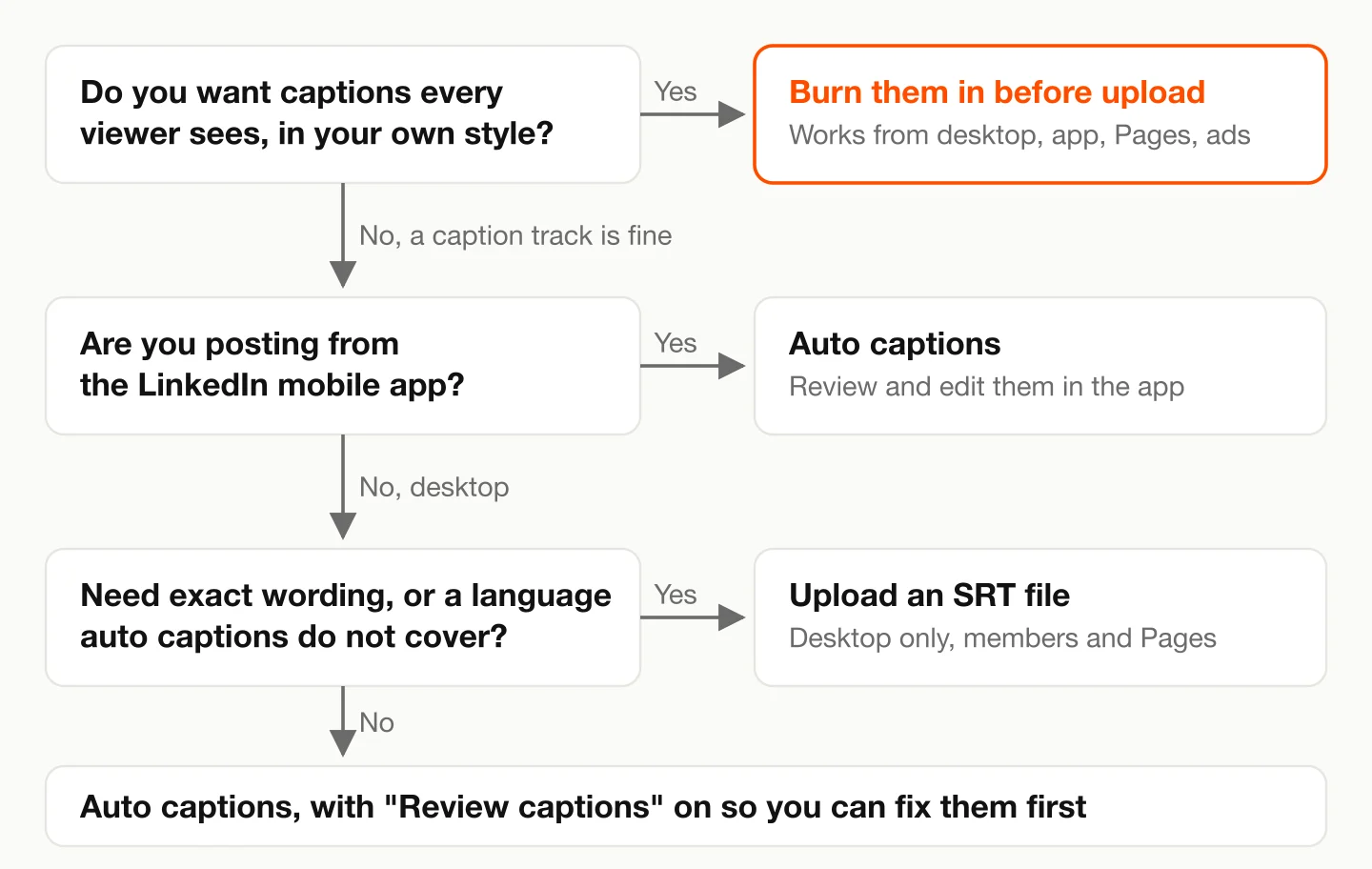
For most professional posts, the practical answer is burned-in captions for the feed plus a quick review of LinkedIn's auto captions, or an SRT, on videos where accessibility matters. If you only post occasionally from your phone, auto captions with the review step are enough.
Frequently asked questions
- Does LinkedIn add captions to videos automatically?
- Only if you turn auto captions on when you post. LinkedIn generates them in 10 languages, and you can publish them straight away or review them first.
- Can I add an SRT file to a LinkedIn video from my phone?
- No. LinkedIn's help says caption files are added from the desktop experience. The mobile app offers auto captions and lets you review and edit them.
- Can I add captions to a LinkedIn video after posting?
- You can edit or remove auto captions after posting from the post's More menu. LinkedIn's help describes attaching an SRT file while you post, so add the file before you publish.
- Can LinkedIn Pages add captions to videos?
- Yes. LinkedIn says auto captions are available for all members and Pages, and that SRT files can be added to videos posted by personal accounts or Pages.
- What languages do LinkedIn auto captions support?
- English, Spanish, Portuguese, French, German, Italian, Indonesian, Turkish, Arabic and Dutch, according to LinkedIn Help. For other languages, upload an SRT file or burn the captions in.
- How do viewers turn captions on or off on LinkedIn?
- On desktop, with the captions icon at the lower right of the video. In the app, by tapping the video, then the More icon, then Hide closed captions.
- What is the best aspect ratio for a captioned LinkedIn video?
- LinkedIn accepts anything from 1:2.4 to 2.4:1. Square and 4:5 take up more of a phone screen than 16:9, and 9:16 suits full-screen viewing. Whatever you choose, keep captions in the lower middle and away from the edges.