How to make green screen captions and key them in any editor
By captionrich team · Published November 26, 2026 · 9 min read
Green screen captions are a video of only your animated captions on a solid green or blue background. You place the file on the track above your edit and remove the green with a chroma key effect (Ultra Key in Premiere Pro, the 3D Keyer in DaVinci Resolve, the Green Screen Keyer in Final Cut Pro, Chroma key in CapCut) so only the captions remain. Use a soft key: glows and semi-transparent words fade or disappear under an aggressive one.
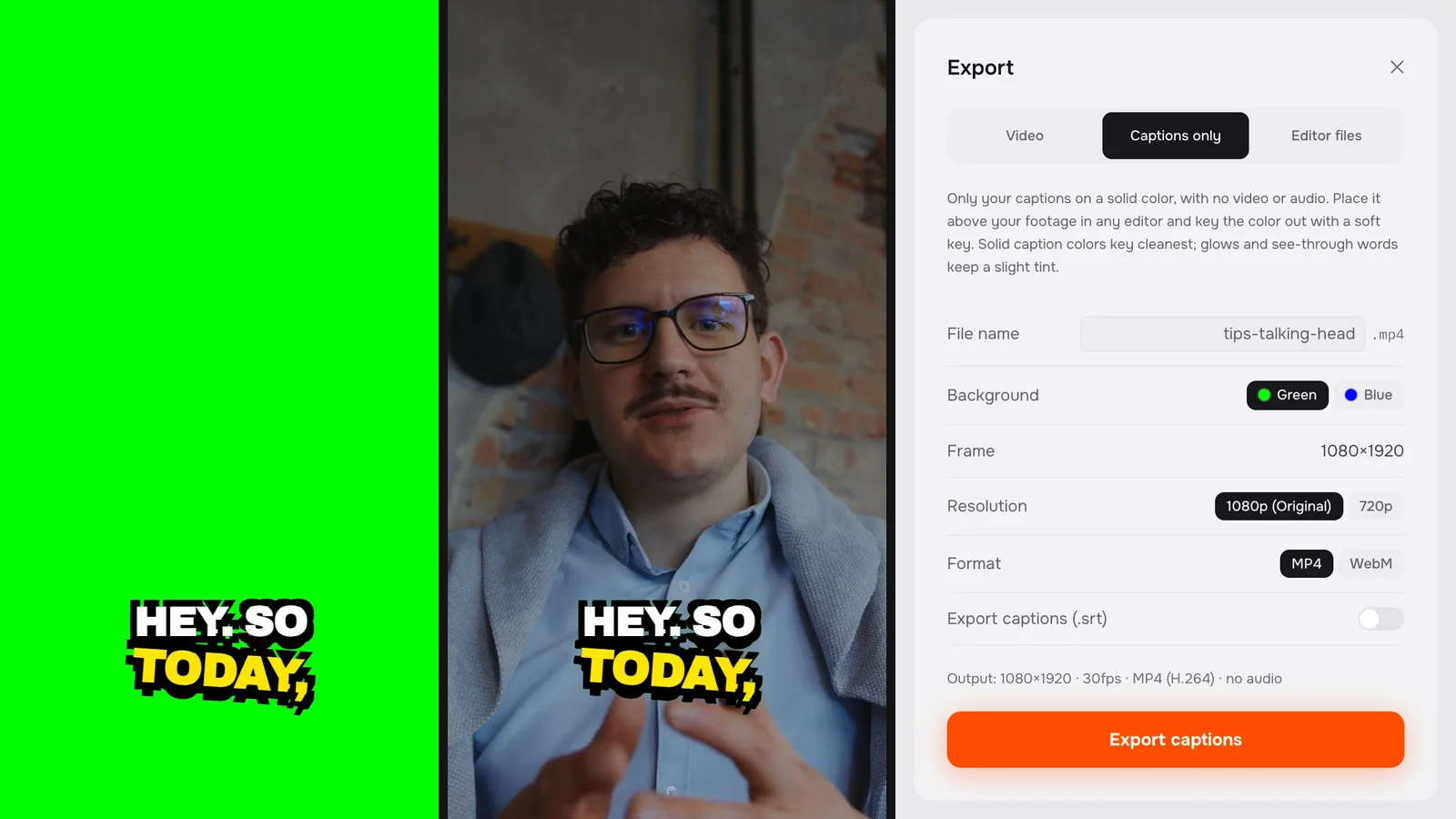
Most video editors can make captions, but their styles are limited next to the animated, word-by-word looks short-form video uses. Caption tools make those looks, but you may want to finish the video in your own editor: to keep your colour grade, your effects, or a client's template. Green screen captions connect the two. The caption tool renders only the captions over a flat key colour, and your editor removes the colour with a chroma key, the same effect used for green screen footage.
Why green instead of a transparent file? A file with real transparency needs an alpha channel (the per-pixel opacity data), and the common formats that carry one are either very large or not supported by the major editors, as the comparison near the end shows. A green MP4 plays everywhere.
How to make green screen captions in captionrich
- Finish the edit first. Lock the cut in your editor and export it. The caption file follows the timing of the video you caption, so captions made from the raw recording will not line up with a cut version.
- Upload the finished edit. Open the editor and upload it. The editor takes videos up to 3 minutes on Free, 4 minutes on Pro and 7 minutes on Max Pro.
- Style and proofread. Pick one of the caption styles, set the position, and correct names and numbers in the transcript. Do not cut anything here, or the timing will no longer match your edit.
- Open Export and choose Captions only. The tab renders only the caption layer. Under Background, pick Green or Blue. It starts on the colour your captions stand clear of, and warns you if the style uses colours close to the one you picked.
- Pick the size and format. Choose the resolution and MP4 or WebM. Turn on Export captions (.srt) if you also want a subtitle file. The output line reads "no audio": the file is silent and has no video in it.
- Export. Press Export captions. The file takes the name in the File name field with
_captions_greenor_captions_blueadded.
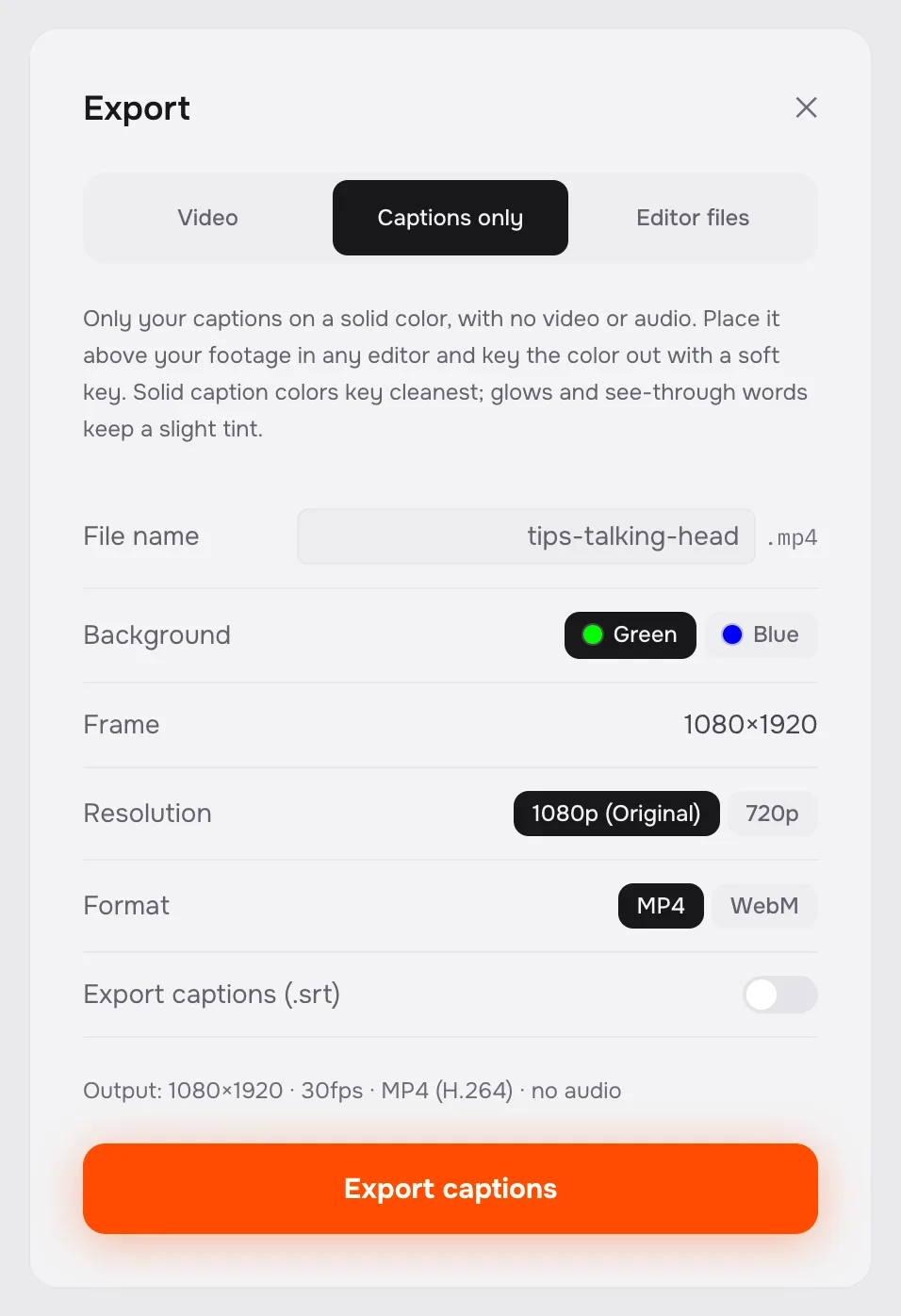
What the file contains: the captions with the same timing and position as a full export, on pure green (#00FF00) or pure blue (#0000FF). Nothing else is drawn, so text layers such as a hook title are not in it. Because no video is decoded, it usually renders faster than a full export. If you want the whole video with captions instead, the Video tab or the free burn subtitles into video tool does that.
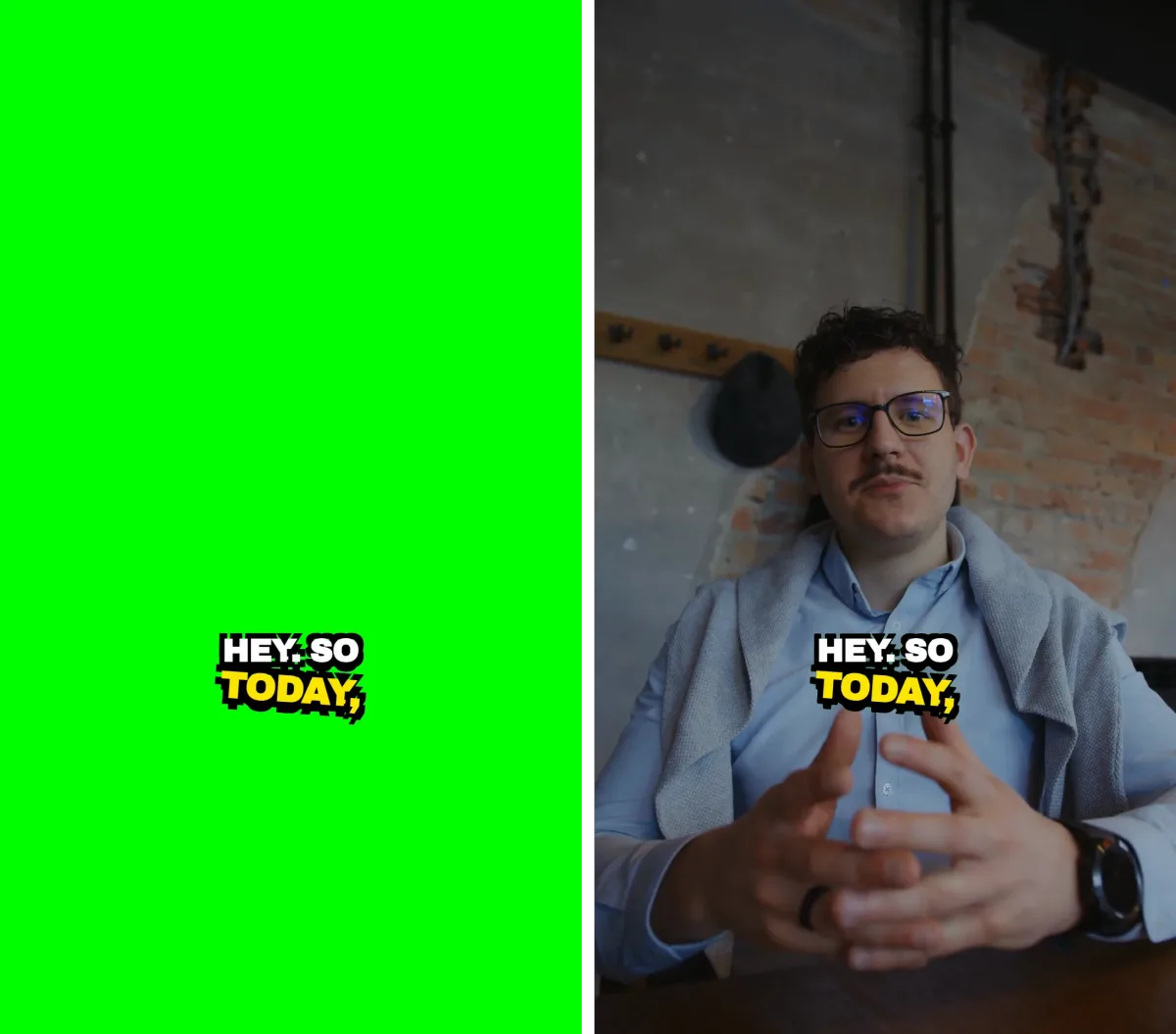
How to key green screen captions in each editor
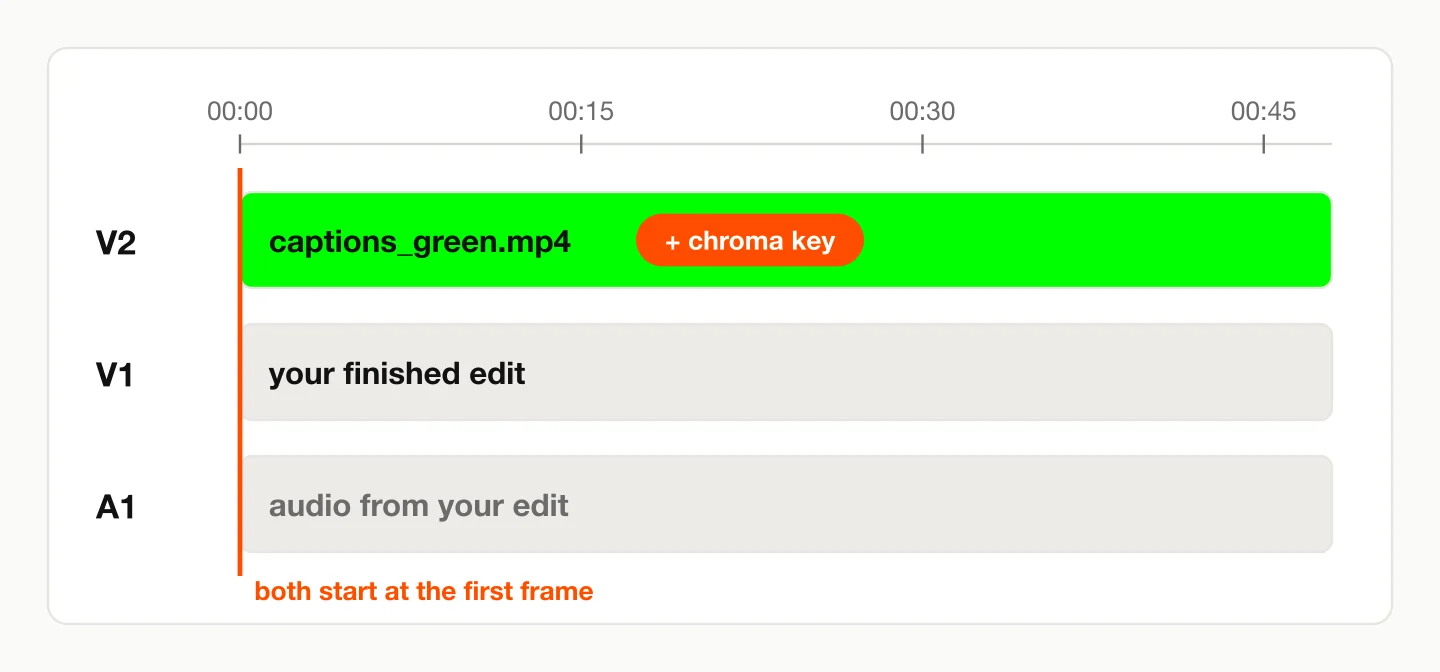
In every editor the setup is the same: put the caption file on the track above your edit, starting at the first frame, then apply the editor's chroma key to the caption clip. The table compiles each maker's documented steps.
| Editor | Effect | Steps | Official guide |
|---|---|---|---|
| Premiere Pro | Ultra Key (Effects panel, Video Effects > Keying) | Drag Ultra Key onto the caption clip. In Effect Controls, click the eyedropper next to Key Color and click the green in the Program Monitor. Use the Output menu to preview the key. | Adobe: Ultra Key |
| DaVinci Resolve | 3D Keyer (Effects Library, Open FX > Resolve FX Key) | Set the Timeline Viewer to Open FX Overlay. Drag 3D Keyer onto the caption clip, pick the Picker eyedropper in the Inspector and drag across the green. If the background does not turn transparent, tick Use Alpha at the bottom of the effect. | Resolve 21 Reference Manual, pp. 1244 and 3642 |
| Final Cut Pro | Green Screen Keyer (Effects browser) | Connect the caption clip above your edit and drag the effect onto it. It detects a dominant green or blue on its own; use Sample Color only if it picked wrong. | Apple: Green Screen Keyer |
| CapCut | Chroma key (desktop: select the clip, Video > Remove BG; mobile: Edit > Remove BG) | Turn on Chroma key, use the colour picker on the green, then raise Strength (Intensity on mobile) until the green is gone. | CapCut help: Chroma key |
Final Cut Pro's guide puts the green clip in the primary storyline with the background connected below; for captions it is simpler to keep your edit in the storyline and connect the caption clip above it, the way Apple's alpha channel guide places an overlay. The 3D Keyer is not marked Studio only in the Resolve 21 manual, so it works in the free version.
Keep the glow: settings for a soft key
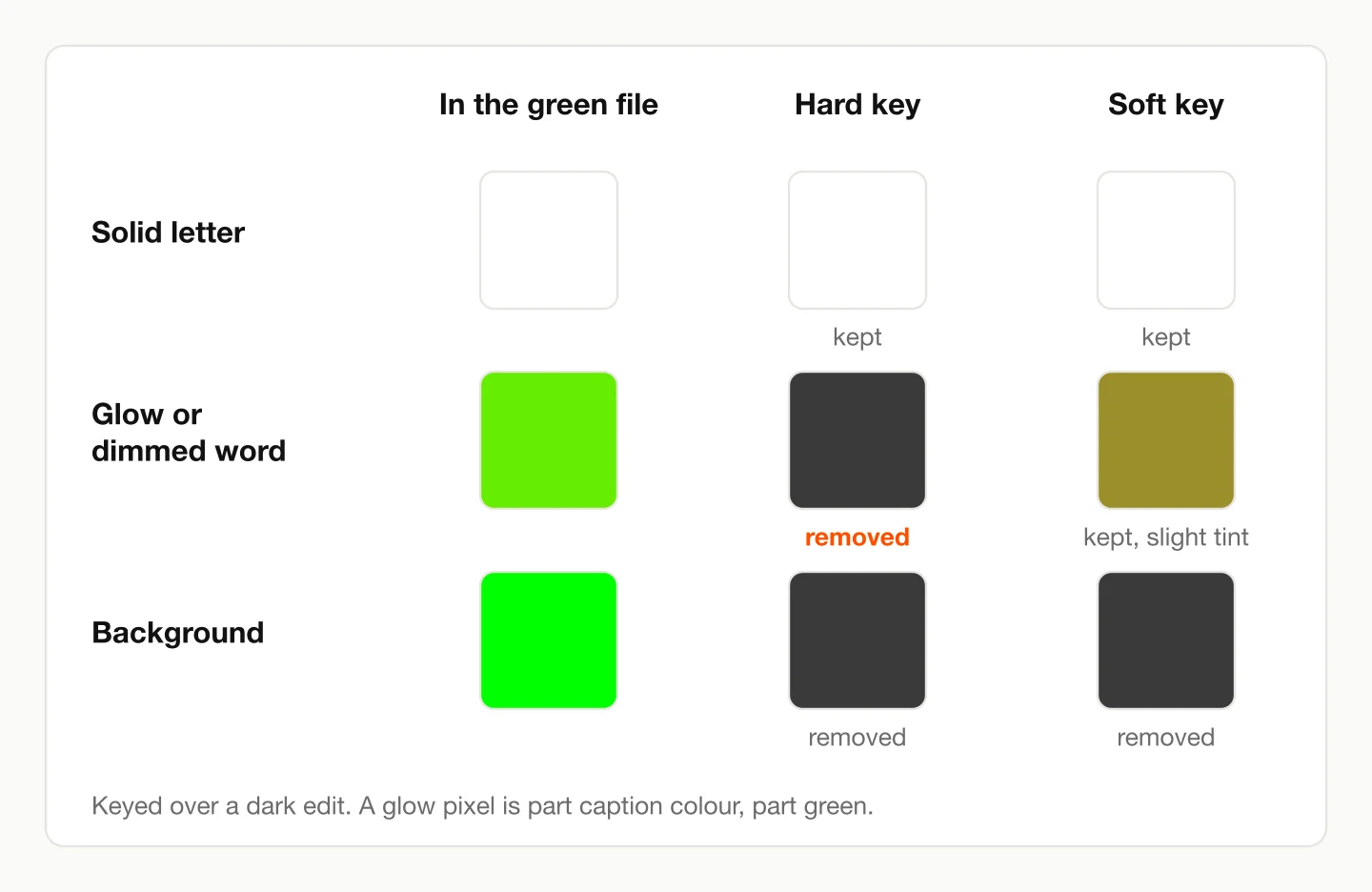
A caption is not only solid letters. Glows, soft shadows, see-through styles and the dimmed words some styles show before they are spoken are partly transparent, so in a green screen export those pixels are a mix of the caption colour and green. A keyer sees them as "partly background". An aggressive key removes them, and the glow vanishes or the dimmed words disappear. A soft key keeps them partly opaque, with a slight green or blue tint.
| Editor | Leave alone or lower | Use with care | Check it with |
|---|---|---|---|
| Premiere Pro | Choke and Contrast (default 0), Pedestal (default 10) | Spill Suppression Desaturate: it greys colours near the key | The Output menu's alpha preview: the glow should be grey, not black |
| DaVinci Resolve | Clean Black and Black Clip (both push translucent edges toward transparent) | Despill. Flat, the default, is the manual's pick for green screen; Soft gives gentler edges if a glow breaks up | Highlight B/W view while you sample |
| Final Cut Pro | Erode, and the Levels Bias handle (dragging right erodes translucent areas) | Spill Level (on by default); lower Strength if the glow keys out | The Matte button in the inspector's View area |
| CapCut | Strength or Intensity: raise it only until the green is gone | Shadow and Edge feathering | Pause on a frame with the biggest glow |
- Sample the background, not the text. Pick the key colour in an empty corner, far from any glow.
- Judge on the matte, not the composite. A glow that reads as grey on the matte survives; black means it was keyed out.
- Export at full resolution. H.264 video usually stores colour at a lower resolution than brightness (4:2:0), which makes thin coloured edges ragged; Apple's guide notes Final Cut Pro's Fix Video option smooths this for 4:2:0 media.
- Accept a little tint or change the style. If a glow keeps an obvious cast, try the other background (the tint changes with it), or use a style with solid colours, which key cleanest.
Green or blue background?
Use the key colour your captions do not contain. Green text on a green background is removed along with it, and the same goes for blue. captionrich checks every colour the captions can paint (the style, per-word highlights, and the accent of Dynamic captions) and starts on green unless blue is clearly safer. If you switch to a colour that clashes, the Export screen tells you. Both backgrounds are fully saturated (#00FF00 and #0000FF), which is what keyers remove most cleanly.
For captions the choice is mostly about colour clash: a rendered file has none of the uneven light or spill that a real backdrop has.
Alternatives to a green screen caption file
| Option | Transparency | Good at | Trade-off |
|---|---|---|---|
| Green or blue MP4 | None; you key it | Imports into any editor that takes MP4; small files | Semi-transparent pixels keep a slight tint; needs a key on every clip |
| SRT file, styled in your editor | Not needed | Text stays editable; smallest file | Animation and styling are limited to what the editor's caption tools offer |
| ProRes 4444 with alpha (.mov) | Real alpha channel | No key and clean edges; Premiere Pro, Resolve and Final Cut Pro all import ProRes | Large: Apple quotes about 330 Mbps at 1080p 29.97 fps |
| WebM with alpha | Real alpha channel | Small files; common on the web | Not in Premiere Pro's or Final Cut Pro's supported formats; Resolve reads WebM only with VP8 video |
Sources: Apple's ProRes overview (ProRes 4444 and 4444 XQ are the only ProRes codecs with alpha), Adobe's supported file formats (updated September 2026), Apple's Final Cut Pro media formats (which can be extended with macOS media extensions) and Blackmagic's Resolve 21 codec list (September 2026). captionrich's WebM export is on a solid key colour too; it has no alpha channel.
If you only need readable subtitles rather than animated captions, an SRT is the lighter route: captionrich's Editor files tab downloads one, the free audio to SRT tool makes one from a recording, and open vs closed captions explains when burned-in captions are the better choice.
Common problems and fixes
- Captions drift out of sync. The edit changed after you captioned it, or the clip does not start at the first frame. Re-export the edit, caption it again, and line the clip up with the first frame of the edit.
- Whole words disappear. The style uses a colour near the key. Export on the other background.
- A green outline around letters. Turn on spill suppression or despill, and sample the key colour again from an empty area.
- The glow is gone or the dimmed words vanished. The key is too hard. Undo choke, erode or clip settings and check the matte.
- The keyed file looks soft. It was exported at a lower resolution than the timeline. Export at the timeline's size.
Frequently asked questions
- What are green screen captions?
- A video file that contains only captions on a solid green or blue background. You put it above your edit and remove the colour with a chroma key, so the captions appear over your footage.
- Can I export captions with a transparent background?
- Some tools export ProRes 4444 or WebM with an alpha channel. captionrich exports captions on solid green or blue instead, because an MP4 imports into almost any editor; you remove the colour with a chroma key.
- Why did my caption glow disappear after keying?
- Glows are partly transparent, so they contain some of the key colour. A hard key removes them. Lower choke, erode and clip settings until the glow shows as grey on the matte.
- Should I use green or blue for captions?
- Use the colour your captions do not contain. Green captions need a blue background and blue captions need green; otherwise either works.
- Do green screen captions include audio?
- No. The captionrich captions-only file is silent, because it sits above your own edit, which carries the sound.
- Can I use green screen captions in CapCut?
- Yes. Add the file above your video, select it, turn on Chroma key under Remove BG, pick the green with the colour picker and raise Strength until it disappears.