How to add emojis to video captions (and how many to use)
By captionrich team · Published November 26, 2026 · 10 min read
To add emojis to video captions, type or paste an emoji into a text layer or sticker in your editor and time it to the word it belongs to, or use an auto emoji tool that picks the words and places the emojis for you. Use about one emoji every 5 to 8 seconds, only on words with a clear meaning, and burn them into the video rather than into a closed caption file, where screen readers read each emoji's name aloud.
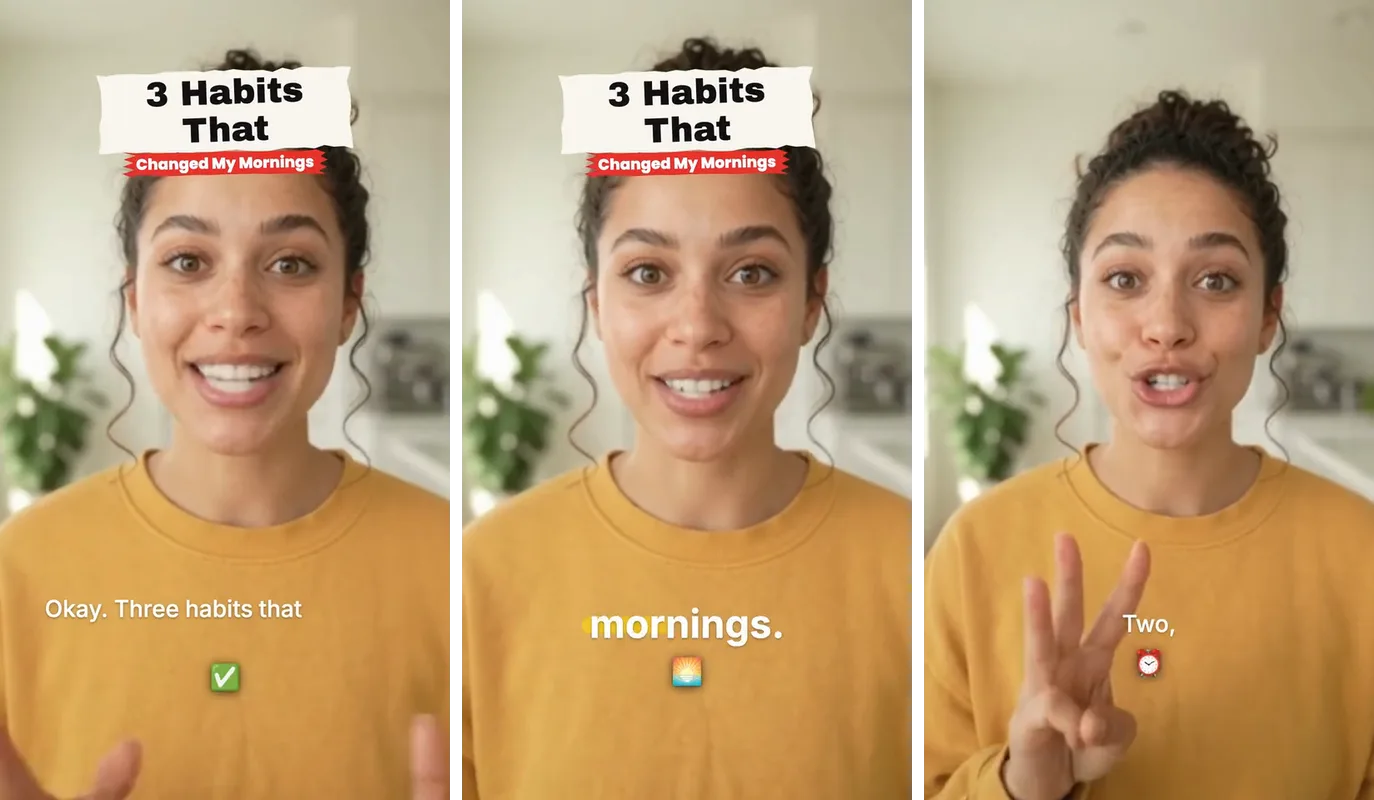
Emoji captions are animated captions with a small emoji under or beside the word it illustrates: 💡 on "idea", ⏰ on "morning", ✅ on a tip that works. The emoji appears with the word and leaves with it. Used sparingly, it gives the eye a second cue for tone and makes a list easier to follow. Used on every line, it becomes noise.
There are two ways to get there: place each emoji yourself, or let a tool pick the words. Both are below, followed by how many to use, an emoji-by-intent table, and the rendering and accessibility details most guides skip.
How to add emojis to captions by hand
Every short-form editor can do it, because an emoji is just a character. The method is the same everywhere:
- Add your captions first. Emojis follow the words, so the words and their timing need to be final. Any captions work, including a free caption generator that burns them in.
- Pick the words. Read the transcript and mark the few words with a clear picture: an object, a number, a feeling, a warning.
- Add the emoji as text or a sticker. Type or paste it into a new text layer, or add it from the app's sticker or emoji library.
- Time it to the word. Trim the emoji's layer so it appears with the word and disappears shortly after.
- Place it consistently. Pick one spot, usually just below the caption line, and keep every emoji there.
TikTok: add text from the editing screen and type the emoji with your keyboard, then drag the arrows on either side of the text to set when it shows (TikTok: editing videos and photos). The Stickers panel also has emojis. Instagram: the Reels editor's text tool takes emojis the same way (Instagram: add text to your reel), and Meta's Edits app shows text as its own clip on the timeline so you can trim it. CapCut: add a text layer or an emoji sticker and trim it on the timeline. Menus change often in all three apps, so look for Text and Stickers rather than exact paths. For the captions themselves, see automatic captions on TikTok and on Instagram Reels.
Doing this by hand gives full control and takes a while: a 60-second video with eight emojis means eight layers to type, place and trim. It also only works in the app where you made it, so a video posted to three platforms needs the emojis added before export.
How to add emojis automatically with captionrich
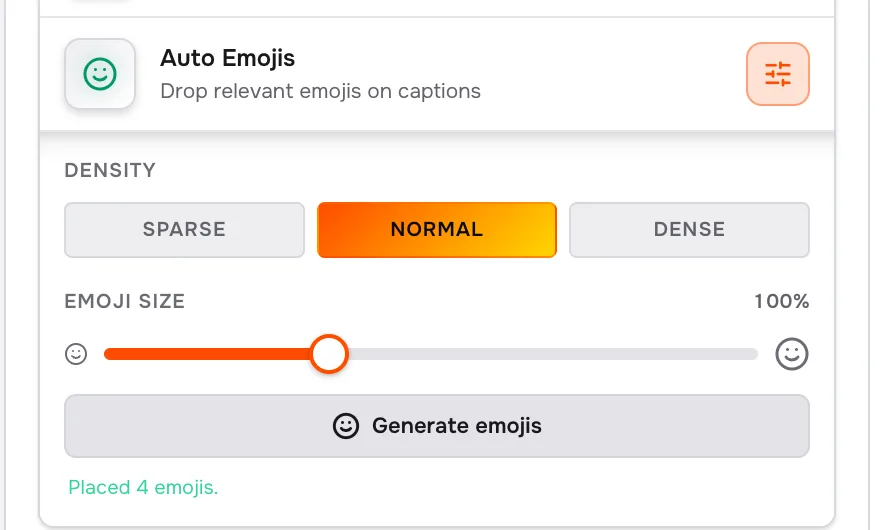
captionrich's Auto Emojis does the picking. It sits in the AI tools panel with a density setting, an emoji size slider and a Generate emojis button. Here is what it does, checked against the code:
- It reads the words that play. The tool sends the transcript of your edited video, without the words you cut and timed as they play, to an AI model that picks words with a clear concept and an emoji for each (its instructions give examples like money → 💰 and idea → 💡).
- It enforces spacing. Sparse allows at most one emoji every 8 seconds, Normal every 5 seconds, Dense every 3 seconds. The server drops any pick that lands too close to the previous one, and keeps a single emoji per pick.
- It puts the emoji under the caption. Each emoji sits one line below the caption block, at 1.25 times the caption's text size, and drifts down slightly while it shows. An Emoji size slider scales it from 50% to 200%.
- It times the emoji to the word. The emoji fades in 0.15 seconds before its word and stays until 0.45 seconds after the word ends.
- It animates where it can. The 411 emojis captionrich has animated versions of, from Google's Noto animated emoji set, play as animations. Others, including 💰, 📈 and every flag, show as still emojis drawn with your device's emoji font.

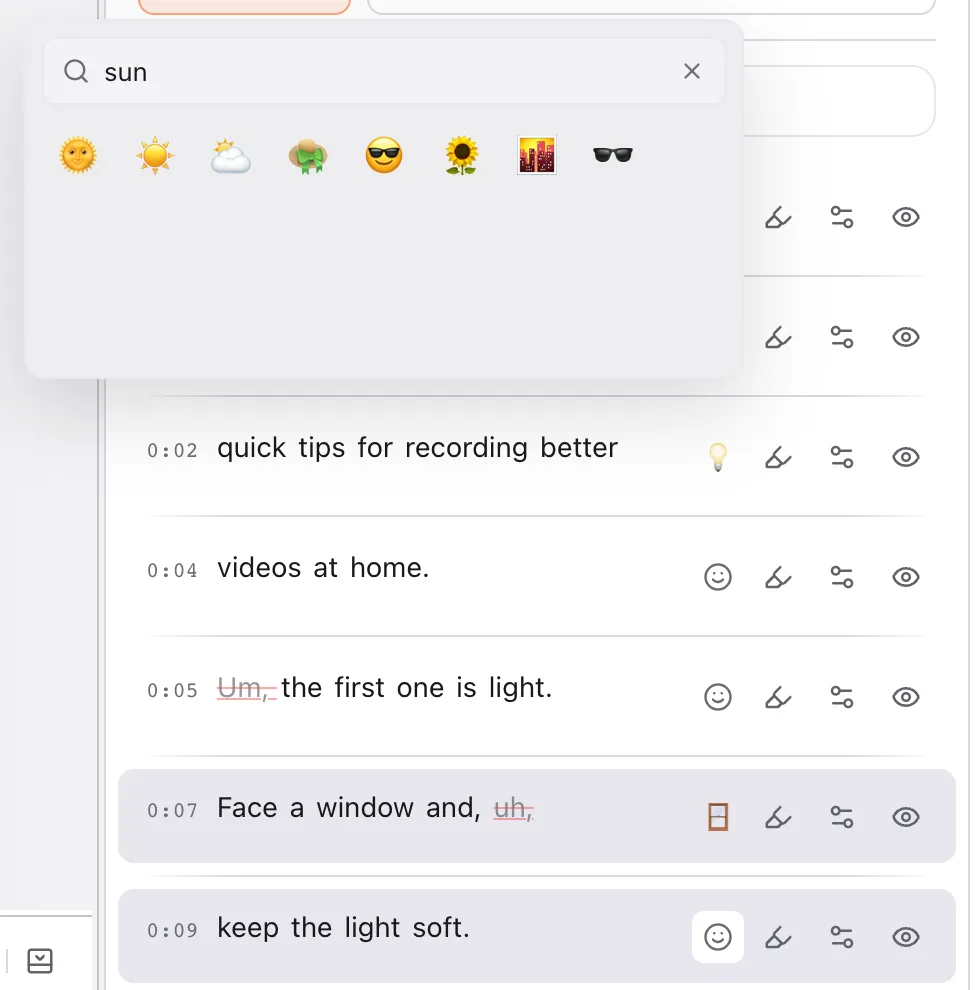
To add or change one by hand, open the Captions tab: every caption has a smiley button that opens an emoji tray with categories and a search box (type "fire" for 🔥, or paste any emoji). A hand-picked emoji belongs to the whole caption and shows for as long as that caption does. Run Auto Emojis before you hand-edit: generating again replaces every emoji, and the app asks before it does.
Auto Emojis uses AI credits, which come with the paid plans; adding emojis by hand works on every plan. It also runs as one step of AI Auto Edits, but only in the edit templates whose style calls for it: Spark, Afterglow, Sunburst and Candid include emojis, while the calmer Mono, Boardroom, Notebook and Evergreen leave them out. The frames at the top of this page come from the Spark template.
How many emojis should a video have?
Fewer than you think. An emoji is a second thing to look at while the viewer is reading the caption and watching the face. Spaced out, each one lands; on every line, the eye stops noticing them.
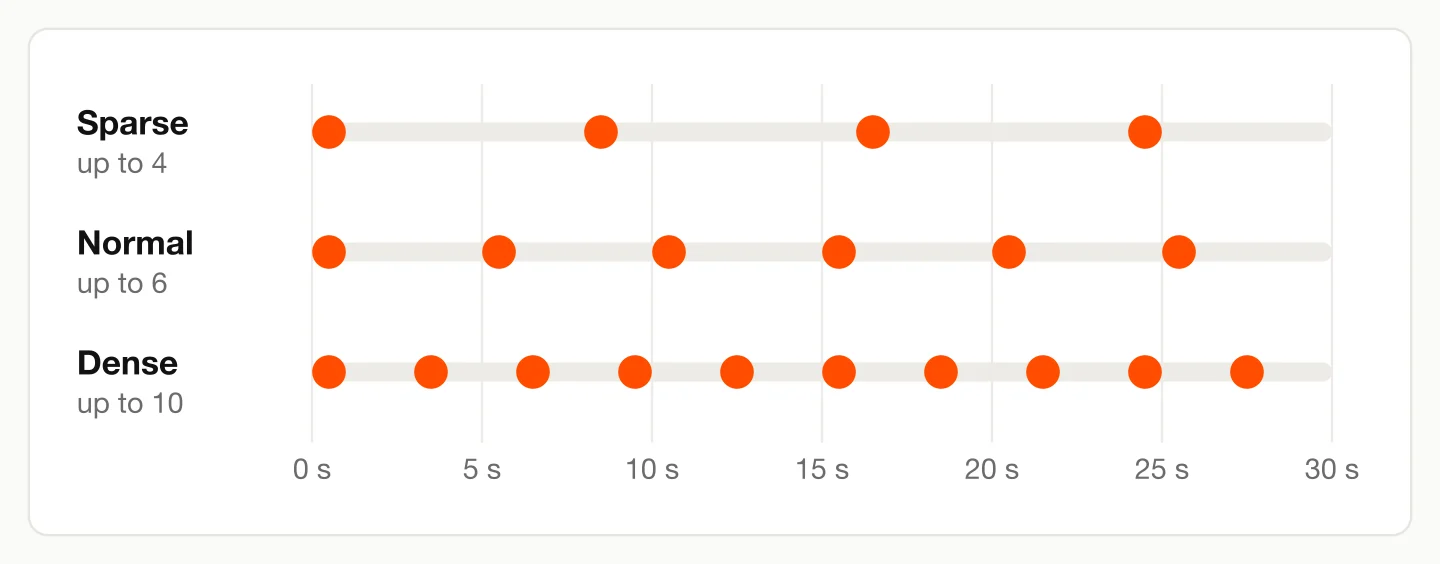
- Advice, tutorials, business: Sparse, or about one every 8 seconds. The emoji marks the steps, not the sentences.
- Lifestyle, lists, upbeat tips: Normal, about one every 5 seconds.
- Comedy and high-energy edits: Dense works when the whole video is loud. Even then, one emoji per caption is the ceiling.
- Serious, sad or sensitive topics: none. An emoji next to a health scare or a loss reads as flippant.
Emoji by intent: what to use and what to avoid
Pick by what you mean, then check the pick against what it often means to others. This table is a starting point, not a rulebook; your audience's habits matter more.
| What you mean | Good picks | Picks to avoid, and why |
|---|---|---|
| Money, price, savings | 💰 💵 🏷️ | 🤑 reads as greedy or scammy on finance advice; 💸 often means money flying away, the opposite of saving |
| Growth, results | 📈 🏆 ✅ | 🚀 and 💯 on every claim read as hype; save them for a real result |
| Warning, mistake | ⚠️ ❌ 🚫 | 💀 often means "I'm laughing so hard", not danger; 🤬 aims anger at the viewer |
| Tip, idea | 💡 📌 ✍️ | 🤓 can read as mocking the person who did not know |
| Time, speed | ⏰ ⏳ ⚡ | A clock face like 🕒 shows a specific time that may contradict what you say |
| Thanks, care | ❤️ 🤝 🫶 | 🙏 reads as "please", "thank you" or "praying" depending on the viewer |
| Humour | 😂 😅 🤣 | 🙂 often reads as passive-aggressive rather than friendly |
| Surprise | 😱 🤯 👀 | 😳 can read as embarrassed or flirty instead of shocked |
| Food, fitness, health | 🥗 🍎 💪 | 🍑 🍆 💦 carry common sexual double meanings |
| Place, travel | ✈️ 📍 🌍 | Country flags: Windows shows most of them as two letters, and a flag can carry political weight |
Meaning mismatches to watch for
Auto emoji tools and tired editors make the same mistake: they illustrate the word, not the sentence. Read each pick in context:
- Figurative language. "You're killing it" with 🔪, "I got fired" with 🔥, "that's sick" with 🤢.
- Negation. "Don't buy this" with 🛒 tells the eye the opposite of what the ear hears. Use ❌ or nothing.
- Names and brands. An emoji on a product or person's name can look like a joke at their expense.
- Numbers. 💯 on "100 dollars" is a pun, not information; the number in the caption already says it.
An AI pick is a draft. Play the video once with the sound on, and remove or swap anything that changes the meaning.
Why emojis look different on every phone
An emoji is a character, and each device draws it with its own font. The same code point looks different on Apple, Google, Samsung and Microsoft systems; Unicode's full emoji list shows the designs side by side. Small differences in expression can change the tone, and some emojis are missing entirely on some systems. Flags are the clearest case: Windows' emoji font, Segoe UI Emoji, has no country flag designs, so Chrome on Windows shows a flag as two letters (a Firefox bug report covers the same font).
Where the emoji lives decides who draws it:
- In the post description, a comment or an in-app text layer that stays editable, each viewer's phone draws it, so an iPhone user and an Android user see different designs.
- Burned into the video, the emoji is pixels. Every viewer sees exactly what you exported.
- In captionrich, emojis are burned in. Animated ones use Google's Noto designs everywhere; still ones are drawn with the emoji font of the device you export on. If you export on Windows, check flag emojis in the preview first.
Emojis and accessibility: keep them out of closed captions
Screen readers do not skip emojis. They read out each one's name, and the W3C notes that emojis come with pre-defined names that may not match what the author meant. A caption line ending in 🔥🔥🔥 becomes "fire, fire, fire"; 😂 becomes "face with tears of joy".
- Closed caption files (SRT, VTT): keep them to the words that were said and the sounds that matter. These files are the text record of the audio, used by viewers who cannot hear it and read by some assistive tools; an emoji there is not speech. If you are unsure which kind of caption you are making, see open captions vs closed captions.
- Alt text and descriptions: describe what is in the video in words. If you add emojis to the post description, put them at the end, not in place of words.
- Burned-in captions: emojis here are fine. They are part of the picture, like any graphic, and they do not change what assistive tools read.
captionrich's SRT and VTT downloads already follow this: they contain the caption words only, and the emojis stay in the exported video. For the caption look itself, see the best caption styles for short-form video, and pair emojis with a short on-screen text hook rather than adding them to it.
Frequently asked questions
- How do I add emojis to my captions?
- Type or paste the emoji into a text layer, or add an emoji sticker, and trim it to the word it belongs to. An auto emoji tool can pick the words and place the emojis for you.
- How many emojis should I put in a short video?
- About one every 5 to 8 seconds for most videos, and never more than one per caption. A 30-second tip video looks clean with four to six.
- Can AI add emojis to captions automatically?
- Yes. Tools like captionrich's Auto Emojis read the transcript, choose words with a clear concept, and place an emoji under each caption at the density you pick. Review the picks, since AI can take figurative words literally.
- Why does my emoji look different on Android and iPhone?
- Each system draws emojis with its own font. Emojis typed into a post or caption file change with the viewer's device; emojis burned into the video look the same for everyone.
- Should I put emojis in SRT or closed caption files?
- No. Screen readers read each emoji's name aloud, and closed captions should stay a record of the words and sounds. Keep emojis in the burned-in captions instead.
- Are animated emoji captions supported in exports?
- In captionrich, yes: emojis with an animated version in Google's Noto set animate in the preview and in the exported MP4. The rest export as still emojis.