How to cut out mistakes in a video: 3 methods and a restart protocol
By captionrich team · Published November 26, 2026 · 8 min read
To cut out mistakes in a video, find where the flubbed line starts and where the clean retake begins, then delete everything between those two points. On a timeline you find them by listening and splitting the clip. In a text-based editor you read the transcript and delete the failed sentence. A bad-take tool such as captionrich's Remove Bad Takes finds restarted lines for you and keeps the last attempt. Pausing and restarting the whole sentence after each mistake makes all three faster.
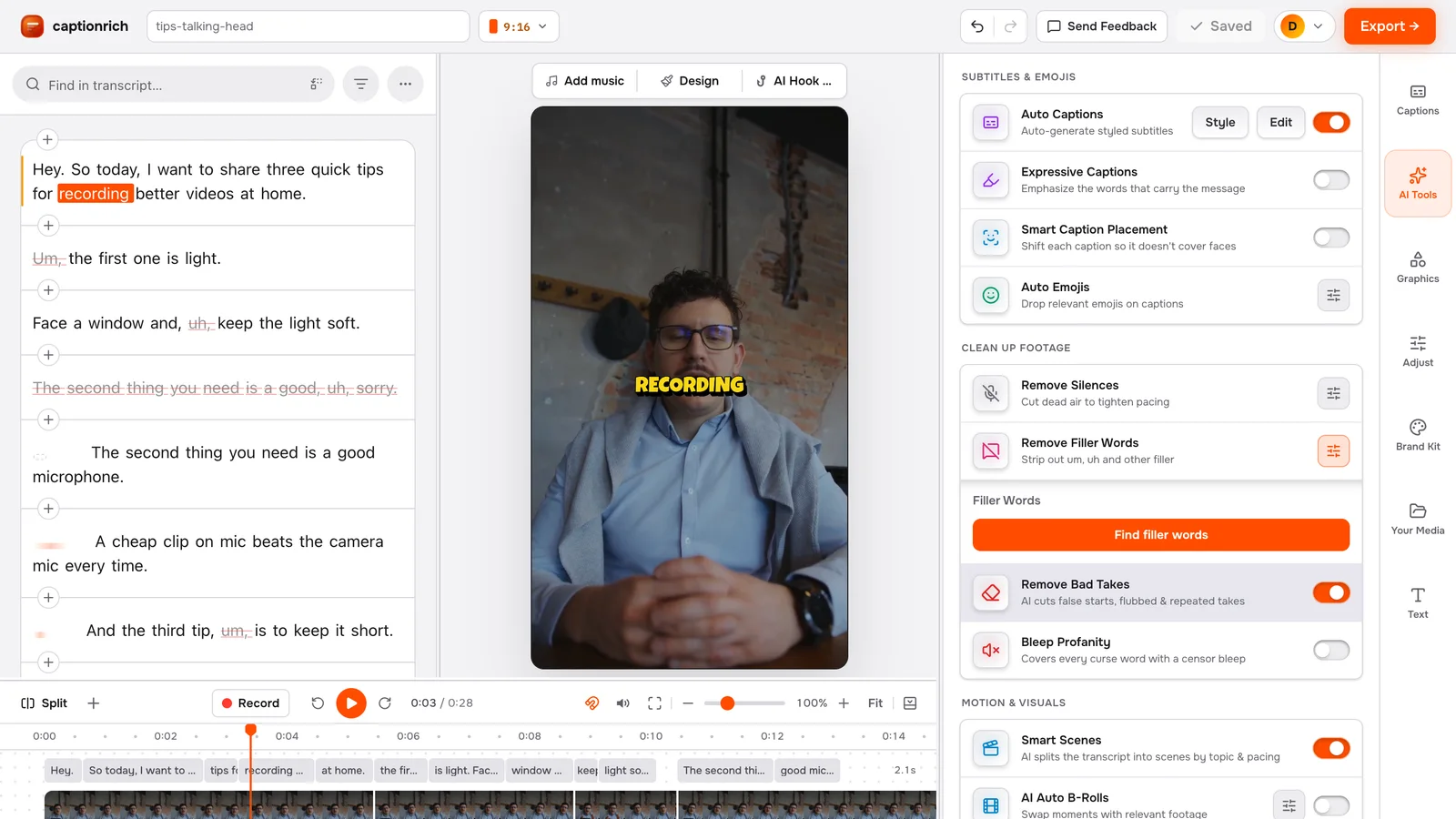
In a talking head recording, a mistake is usually one of five things: a false start, a wrong word, a line said twice, a thought you abandoned, or a "sorry, let me start again". Unlike a filler word or a pause, a mistake is a whole phrase, so cutting it means picking two points: where the bad attempt starts and where the good one begins.
How hard that is depends mostly on how you recorded. So this guide starts before the edit, with a restart protocol, then covers the three ways to edit out mistakes: on a timeline, in a transcript, and with AI.
The restart protocol: record so mistakes are easy to cut
The goal is not a recording without mistakes. It is mistakes that are quick to remove. Use this checklist every time a line goes wrong:
- Keep recording. Stopping and starting gives you extra files and small changes in framing and light. One continuous take is easier to cut.
- Stop as soon as you know the line is wrong. Finishing a broken sentence only adds footage to delete.
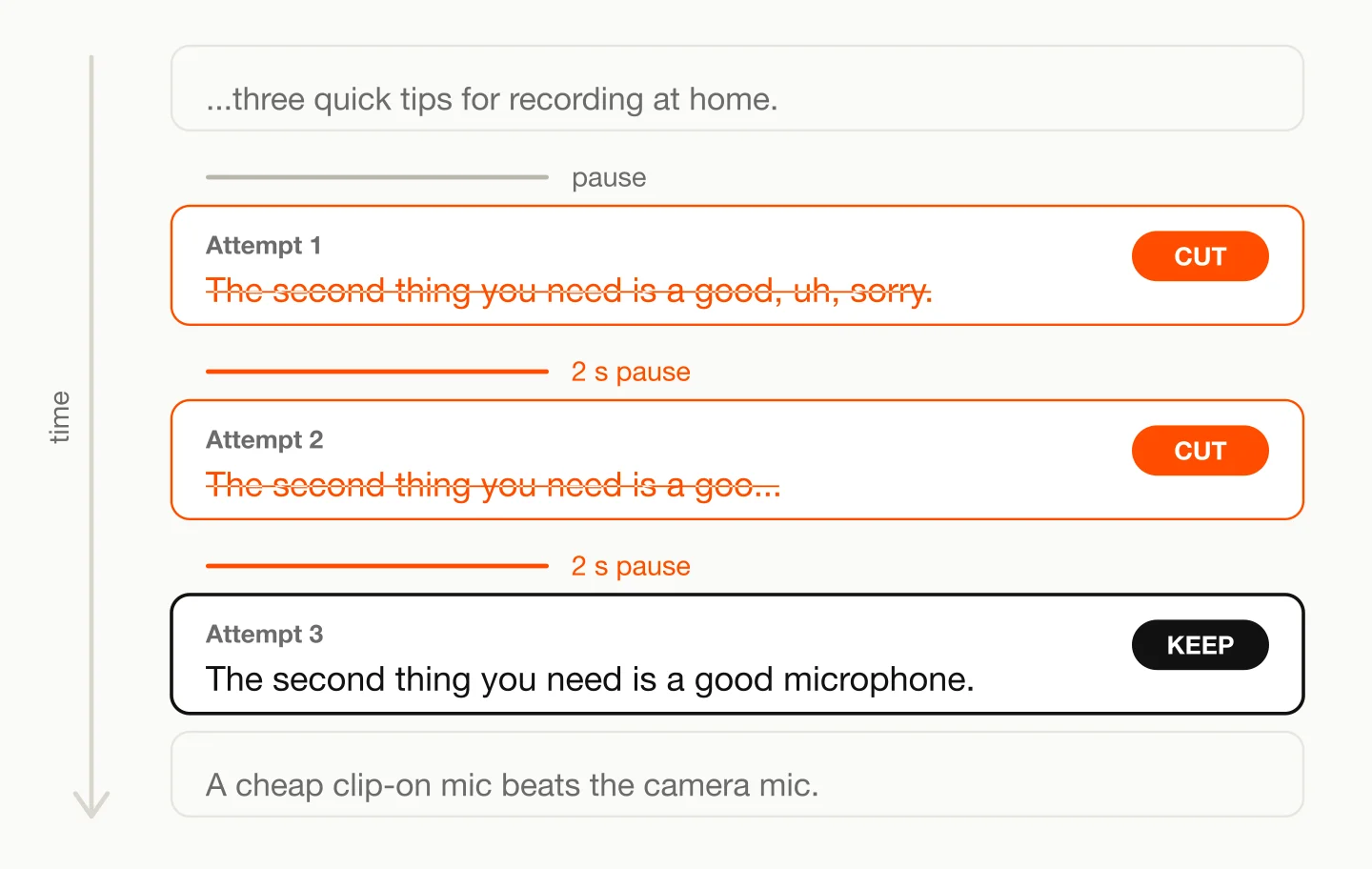
- Pause for about two seconds in silence. It shows as a flat stretch on the waveform and a clear break in the transcript, and it gives the cut a quiet place to land.
- Optional: mark it. A single clap makes a sharp spike that is easy to spot on a waveform. Saying "let me restart" marks it in the transcript, and it is one of the self-corrections Remove Bad Takes looks for.
- Reset. Return to the same posture and look back into the lens before you speak, so the picture jumps as little as possible at the cut.
- Restart the whole sentence, not the word you missed. A complete sentence is a clean cut point and sounds natural; a restart from mid-sentence rarely matches the tone of what came before.
- Make the last attempt the good one. If the retake also goes wrong, do it again. Editors, and tools that keep the last attempt, assume the final take is the keeper.
The same habits help in every editor, and they make the rest of the clean-up simpler too: a pause instead of an "um" is easier to remove, as the guide to removing um and uh explains. For the setup itself (light, mic, framing), see how to record a talking head video at home.
Method 1: Edit out mistakes on the timeline
This works in any timeline editor, from Premiere Pro and DaVinci Resolve to CapCut and iMovie.
- Find the restart. Play the clip and watch the waveform. A restart shows as a flat pause (or a clap spike) followed by a shape you have just seen: the same sentence again.
- Mark the start of the cut. Go back to the end of the last sentence you want to keep and split the clip in the pause right after it.
- Mark the end of the cut. Split again just before the first word of the final attempt, leaving a few frames of silence before it.
- Ripple delete. Delete the section and close the gap. In Final Cut Pro, deleting a range from the primary storyline closes it for you, per Apple's guide to removing clips.
- Listen across the join. The two sentences should sound like one continuous thought. If the tone jumps, try cutting to a different attempt.
The method is precise and free, but it is slow: you listen to the whole recording to find each mistake, and a quiet false start with no pause after it is easy to miss.
Method 2: Delete mistakes in a transcript
A text-based editor transcribes the recording and lets you cut video by deleting words. Mistakes are much easier to spot when you read: a restarted line appears twice in a row, and a self-correction such as "sorry" stands out on the page. The longer explanation is in what is a text-based video editor.
- Premiere Pro: in Text-Based Editing, cut or delete text in the sequence transcript and Premiere "automatically applies a Ripple Edit" to the timeline, per Adobe's sequence editing guide.
- DaVinci Resolve Studio: the Transcription window lets you select a range of text and edit it into a timeline. Audio Transcription is marked Studio only in the Resolve 21 manual.
- Descript: edit the script to edit the video, and its Remove retakes AI action looks for repeated lines.
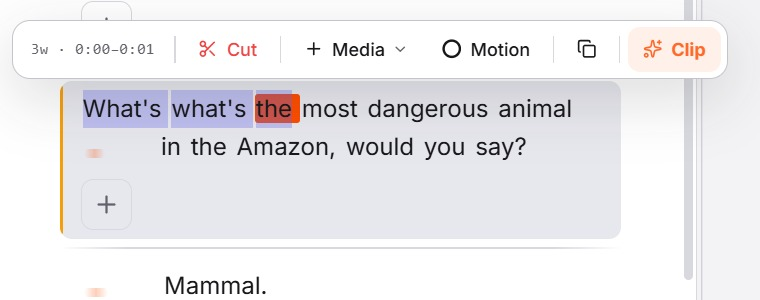
- captionrich: select the failed sentence in the transcript and press Cut. The cut is non-destructive: the original file is untouched and the words can be restored.
Method 3: Remove bad takes with AI
Remove Bad Takes in captionrich is a switch in the AI Tools panel. It sends the transcript, with each word's timing, to an AI model that marks the speech you did not mean to keep:
- False starts: a line begun, stopped and restarted.
- Flubs: a line said wrong, then said again.
- Duplicates: the same sentence said twice or more.
- Abandoned thoughts: a sentence started and dropped.
- Self-corrections: "wait, no", "let me restart", "scratch that".
When a line has several attempts, it keeps the last one and cuts the earlier ones, including the pauses between them, so the kept attempt starts on its own first word. It leaves filler words alone; Filler Words is a separate tool.
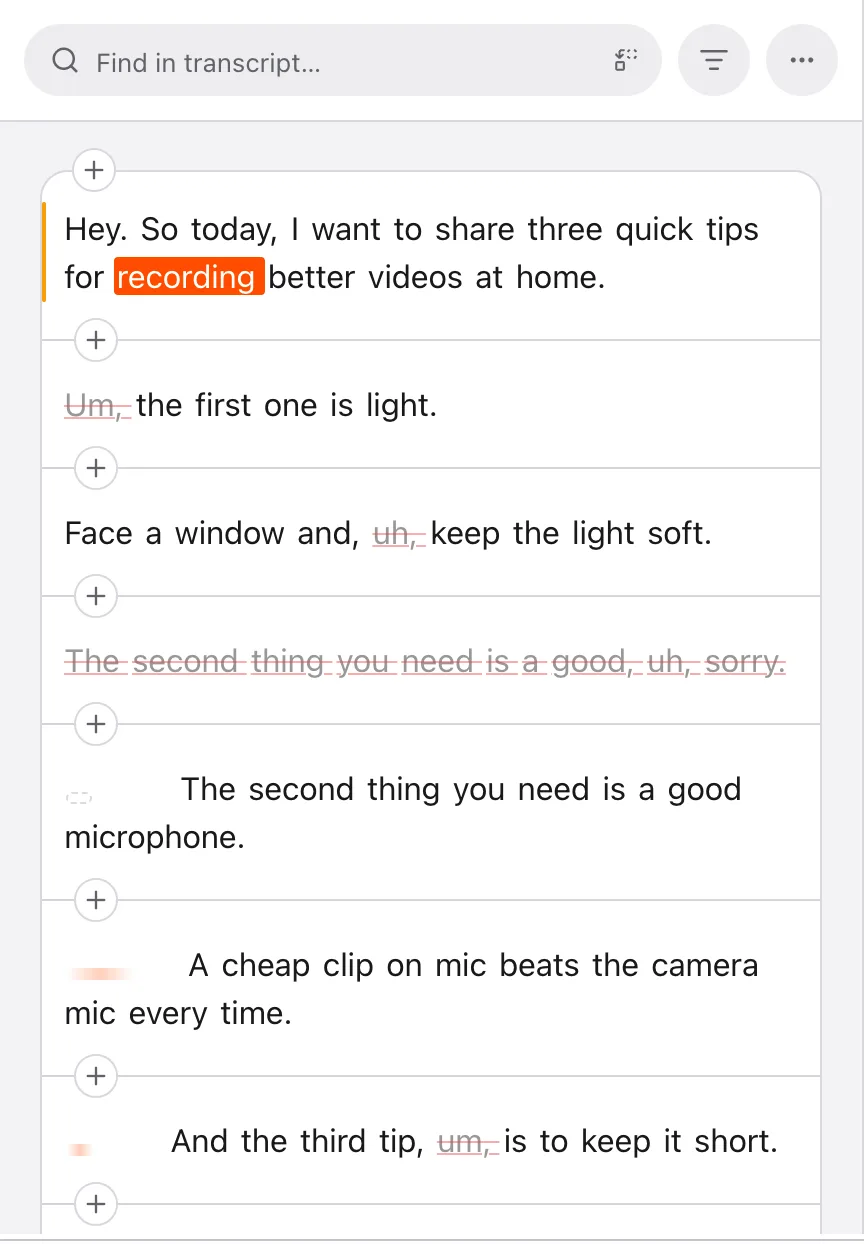
It is reversible in a precise way. The cuts it makes are recorded, and switching it off puts back exactly that footage and nothing else, so cuts you made by hand afterwards stay cut. Remove Bad Takes uses AI credits, which come with the Pro and Max Pro plans.
How to hide the cut after removing a mistake
With one camera, any cut inside a shot makes the picture jump slightly, because you moved between attempts. Three common fixes:
- Punch in. Scale the second shot up by 10 to 20 percent so the cut reads as a camera change. Smart Jump Cuts adds a quick zoom at every cut in one toggle, and the guide to zoom effects on a talking head video covers doing it by hand.
- Cover it with B-roll. Put a clip or image over the join so the viewer hears a continuous sentence over a different picture. See how to add B-roll to a video.
- Morph across it. Resolve's Smooth Cut transition blends the two positions; its manual says 2 to 6 frames work best, on sit-down shots where the speaker barely moved.
Which method should you use?
| Situation | Best method | Why |
|---|---|---|
| A few obvious mistakes in a short clip | Timeline | Quick and needs no transcript |
| Many retakes in a short talking head video | AI bad-take removal, then a read-through | Finds every restart in one pass; you check the result in the transcript |
| Wording matters, such as a script or a lesson | Transcript | You choose each cut by reading the exact words |
| The best attempt is not the last one | Transcript or timeline | A keep-last tool will pick the wrong attempt |
| A long recording or several cameras | Your timeline editor | captionrich's editor takes videos up to 3, 4 or 7 minutes depending on the plan |
These methods combine well. A common order for a short video: Remove Bad Takes, read the transcript once to fix what it missed, remove fillers, then remove silences. If you finish in Premiere Pro, Resolve or Final Cut Pro, captionrich's Export screen can download the cut as XML, FCPXML or EDL.
Frequently asked questions
- How do you edit out mistakes without it looking like a jump cut?
- Punch in on the shot after the cut, cover the join with B-roll, or use a morphing transition such as Resolve's Smooth Cut. Keeping your posture the same when you restart makes any of them work better.
- Should I stop recording when I make a mistake?
- No. Keep recording, pause in silence for a couple of seconds, then restart the whole sentence. One continuous file is faster to edit than many short clips.
- Does Remove Bad Takes keep the best take?
- It keeps the last attempt of each restarted line. Make your final attempt the one you want, or restore an earlier take by hand.
- Can I undo Remove Bad Takes?
- Yes. Switching it off restores exactly the footage it removed, and leaves any cuts you made by hand in place.
- Why clap after a mistake?
- A clap makes a sharp spike on the audio waveform, so you can find each restart by eye in a timeline editor. In a transcript editor, a short spoken marker such as "let me restart" works better.
- Can AI remove mistakes from a long video?
- Tools differ. captionrich's editor handles videos up to 7 minutes on Max Pro, so for long recordings use your timeline editor or a transcript-based desktop tool.