How to remove um and uh from a video (and when to keep them)
By captionrich team · Published November 26, 2026 · 9 min read
To remove um and uh from a video, find each filler and cut it out together with part of the pause around it, so the join sounds natural. You can do it by hand on the timeline waveform, in a transcript-based editor where deleting the word cuts the video, or with a filler word tool: Premiere Pro's Text-Based Editing finds "uh" and "umm", and AI tools such as captionrich's Filler Words also judge words like "like" and "so" in context. Keep the few that give your speech its rhythm.
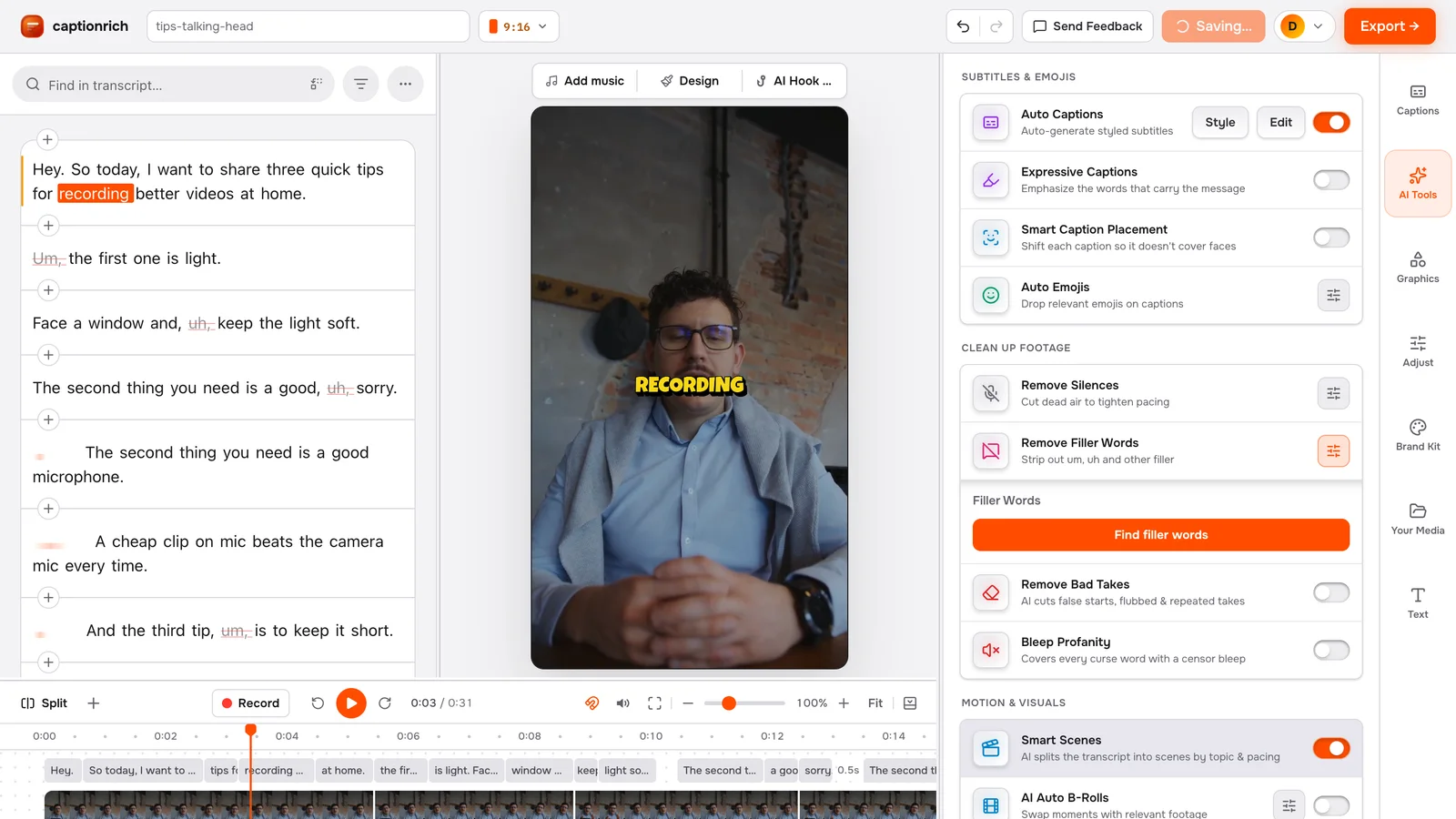
Filler words are the sounds and short phrases a speaker uses to hold their place while thinking: "um", "uh", a stalled "like", a "you know" that asks nothing. They are normal speech. Working from several large collections of recorded speech, Clark and Fox Tree (2002)00017-3) argue that speakers use "uh" to announce a short delay and "um" a longer one, for example while searching for a word or to keep the floor.
In conversation most listeners barely notice them. In a short video they cost seconds you cannot spare, and with word-by-word captions every "um" appears on screen in large type. Removing filler words from a video is mostly about doing it without breaking the sentence around them.
Three ways to remove filler words from a video
| Method | How you find fillers | Best for | Watch out for |
|---|---|---|---|
| By hand on the timeline | Listen and read the waveform | A few fillers in a short clip, any editor | Slow on long recordings; easy to miss soft ones |
| In a transcript editor | Search or filter the transcript | Bulk removal of "um" and "uh" | Context words such as "like" still need judgment |
| AI filler detection | A model reads each sentence and marks fillers | Mixed fillers, fast review | Review the list; the model can still be wrong |
Method 1: Cut fillers by hand on the timeline
This works in any editor: Premiere Pro, DaVinci Resolve, Final Cut Pro, CapCut or iMovie. It is precise and costs nothing but time.
- Play the clip with the waveform visible. Zoom in on the audio track until single words have a visible shape.
- Spot the filler. An "um" or "uh" is one held sound, so it shows as an even block without the sharp peaks that consonants make. It usually sits between two short pauses.
- Cut around it, not on it. Split the clip in the middle of the pause before the filler and in the middle of the pause after it. Cutting only the word leaves two pauses back to back, which sounds like a stutter.
- Ripple delete the piece. Remove the section and close the gap so the next word follows.
- Listen across the join. If you hear a click, move the cut a few frames into the silence or add a very short audio crossfade.
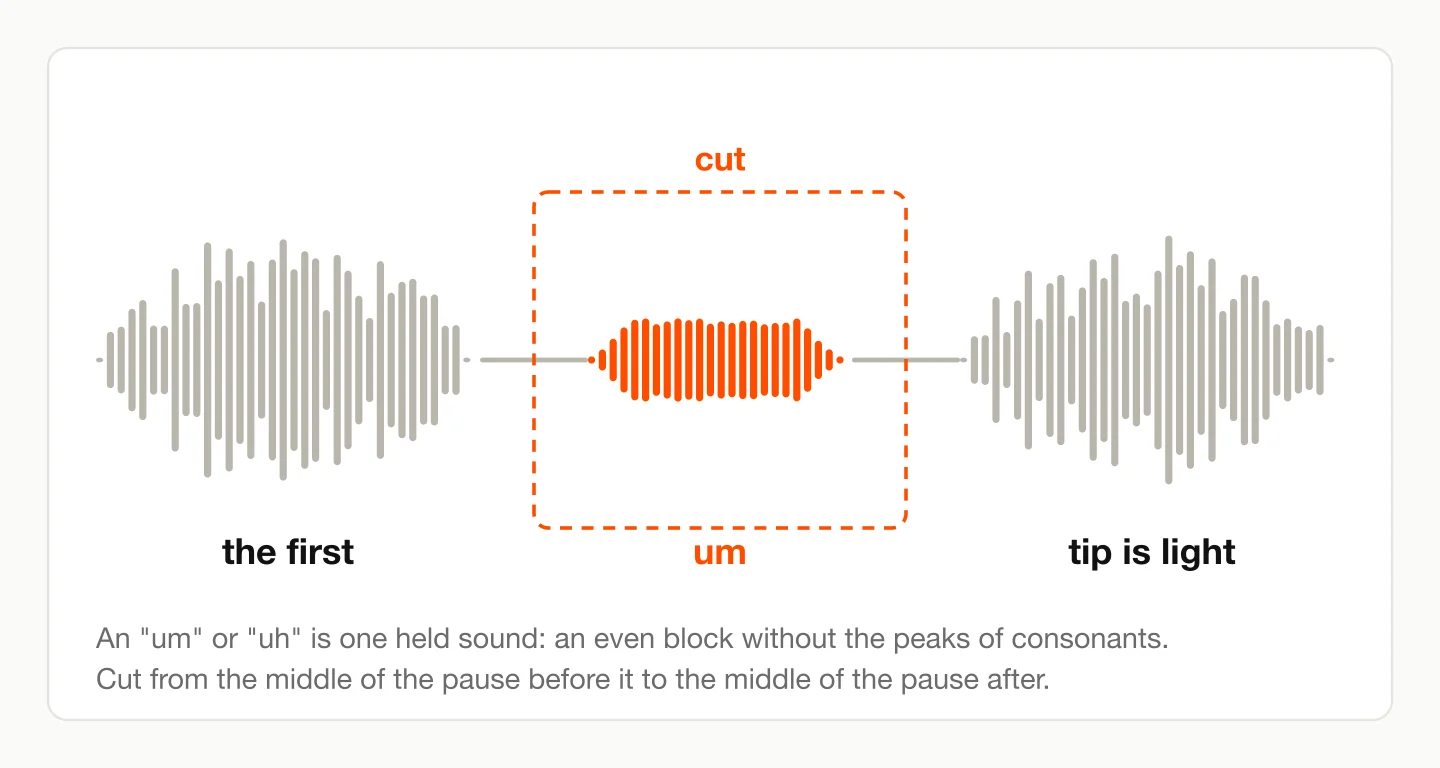
The weakness is search time. You have to hear every filler to find it, and a soft "uh" between two words barely shows on the waveform.
Method 2: Delete fillers in a transcript
A text-based editor transcribes the video with a timestamp on every word, so removing a filler is deleting a word. Two common editors also find fillers for you.
Premiere Pro. Adobe's Text-Based Editing can "detect and bulk-delete filler words like uh and umm", per its overview. Transcribe the clip, select the filter icon in the Transcript panel, choose Filler words, then Delete one at a time or Delete all, as described on Adobe's pauses and fillers page. It is included with a Premiere subscription.
Descript. Its filler word help page describes an AI Tools panel action, Remove filler words, that lists every detected filler with a preview. Each one can be deleted, deleted with a gap left in its place, or removed from the transcript text only while the audio stays, and an Avoid harsh cuts option skips fillers that cannot be removed without clipping nearby words. On current plans it uses AI credits.
Both are fast for "um" and "uh". The hard part is everything else: a list of words cannot tell "I like this one" from "it was, like, really fast". Treat any bulk result on context words as a draft and read it before you delete.
Method 3: Let AI judge each filler in context (captionrich)
captionrich's Filler Words tool has no fixed word list. It sends the transcript, sentence by sentence, to an AI model with one test for each candidate: read the sentence without the word, and cut it only if the sentence still sounds natural and means the same. When the model is unsure, the instruction is to keep the word.
- Always treated as fillers: "um", "uh", "er", "erm", "hmm", "ah" and their longer spellings.
- Judged in context: "like", "so", "well", "right", "okay", "actually", "basically", "literally", "honestly", "you know", "I mean", "kind of", "sort of", "I guess".
- Always kept: a "like" that reports speech, as in "I was like, no way". It follows a form of "to be", and cutting it changes what was said.
- Upload and transcribe. Open the editor and upload the video. Transcription is automatic.
- Find the fillers. In the AI Tools panel, open Remove Filler Words and press Find filler words.
- Review the list. Each hit appears with four words of context on each side and the filler struck through. Untick any you want to keep, or use Remove all and Skip all.
- Apply. Each cut takes the filler plus part of the pause around it and lands on a quiet point, the same way a manual word delete does.
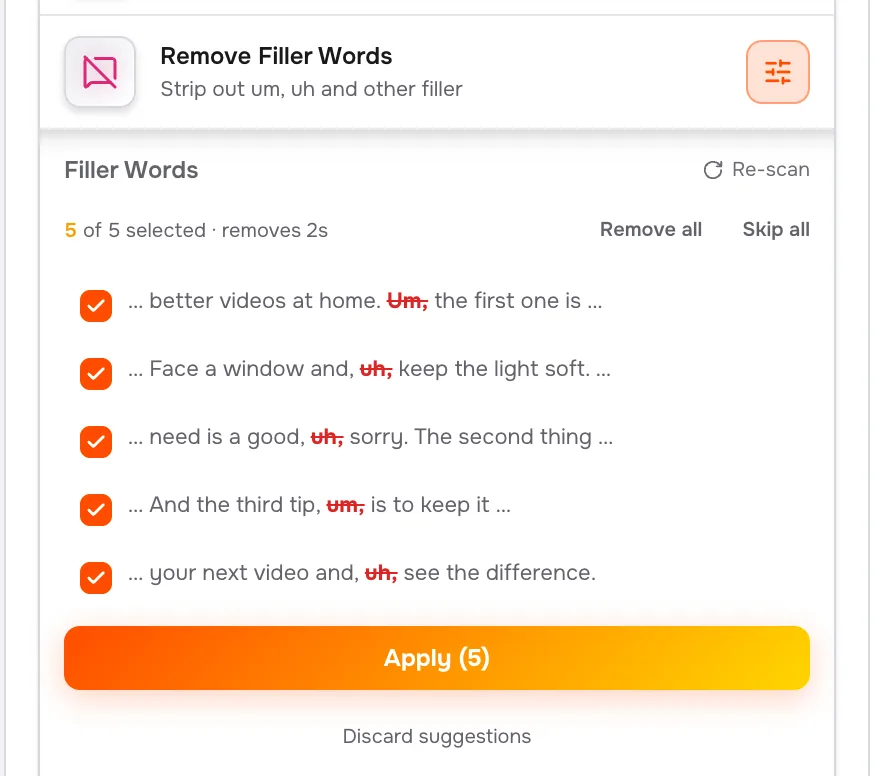
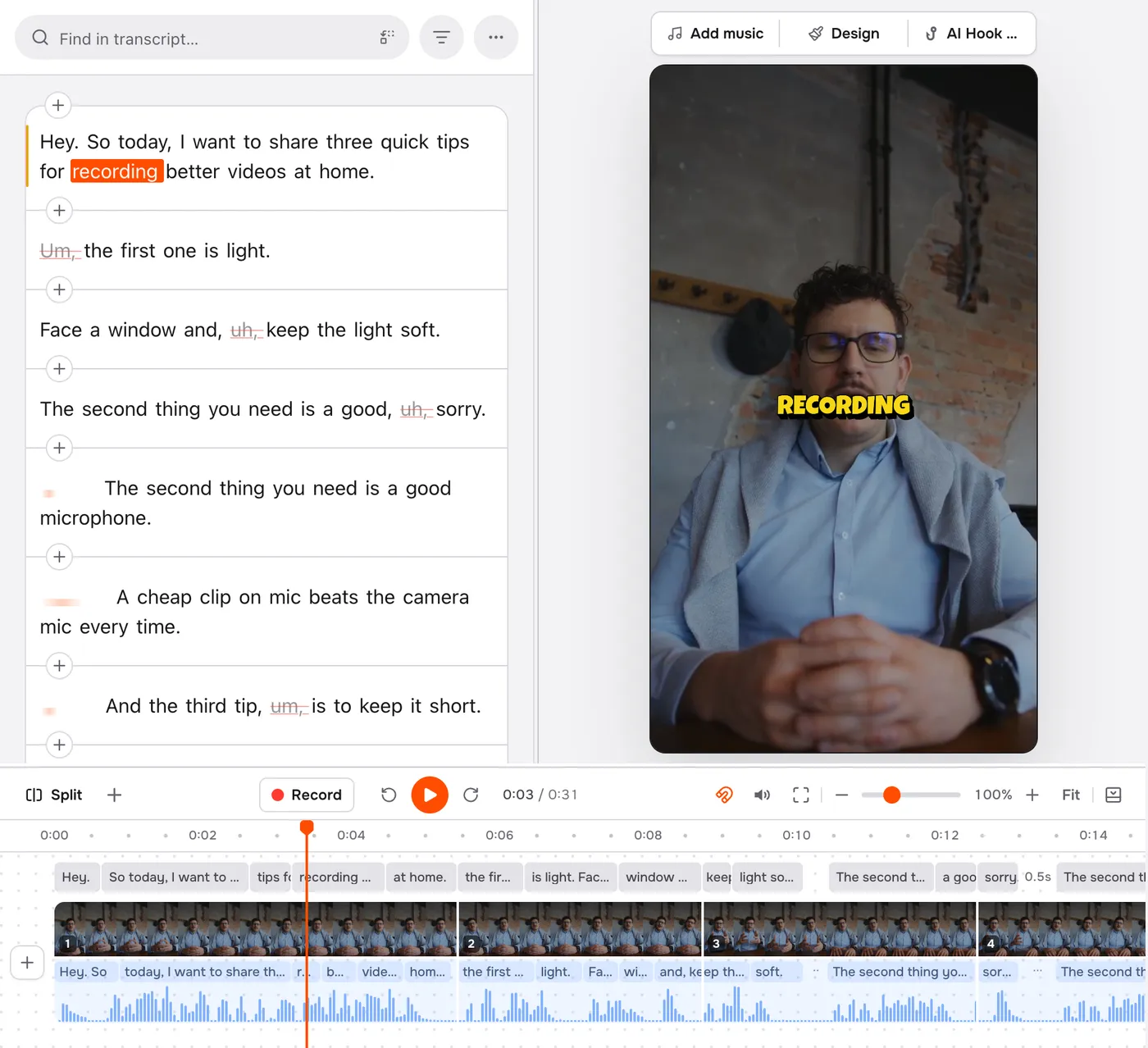
The cuts are non-destructive. Removed fillers stay visible in the transcript as struck-through words, so you can restore any single one, and the whole pass is one undo. Filler Words uses AI credits, which come with the Pro and Max Pro plans; on the Free plan you can still delete each filler by selecting it in the transcript.
Filler or meaning? A decision table for common fillers
Use this table when you review any filler list, from any tool. The test is the same one the AI uses: say the sentence without the word. If it still works and means the same, the word is a filler.
| Word | A filler when | Cut it | Keep it when | Keep it |
|---|---|---|---|---|
| um | Almost always: it holds your place while you think | "So, um, the first tip is light." | A deliberate beat in a casual or comic line | "Is it worth it? Um... no." |
| uh | Almost always, often right before a restart | "You need a good, uh, microphone." | Rarely; same as "um" | Hardly ever needed |
| like | Set off as an aside, or as a hedge before a number | "It was, like, really fast." | It is a verb, a comparison, or reports speech | "I like this one." / "She was like, no way." |
| so | It opens every answer or stalls before a pause | "So, um, what I mean is..." | It links a cause and a result | "It was cheap, so I bought two." |
| you know | A mid-sentence aside that asks nothing | "She was, you know, annoyed." | It is a real question to the viewer | "You know what I mean?" |
| basically | It opens a sentence that is not a summary | "Basically, I film on Sundays." | It signals a deliberate simplification | "Basically, an EDL is a list of cuts." |
| I mean | It restarts a thought without changing it | "I mean, it's a good camera." | It corrects or clarifies what came before | "Not the camera. I mean the mic." |
| right? | A tag on the end of every sentence | "You need light, right? And sound, right?" | It is a real check, or means correct or a direction | "Turn right." / "That's the right file." |
When should you keep a filler word?
Zero fillers is not the goal. Removing every one can make a speaker sound scripted, and each cut is a jump in the picture.
- When it carries timing. An "um" before an honest answer, or a "so" that sets up the punchline, is part of the delivery.
- In conversation. Interviews and podcasts sound natural with some fillers, and cutting them out of the guest's answers can change their tone.
- When the cut would show. On a static shot with no zoom or B-roll to cover it, a filler between two sentences may be cheaper to keep than a visible jump. If you do cut it, a punch-in at the cut hides the jump, which is what Smart Jump Cuts adds.
- When the audio does not allow it. If the filler runs into the next word with no pause, any cut clips one of them. Leave it, or replace the line with a retake.
How to say fewer fillers while recording
Fillers fill silence. The fix is to let the silence happen: a pause is easier to cut than an "um", and Remove Silences or the silence tools in Resolve, Premiere Pro and Final Cut Pro remove pauses in one pass.
- Stop and breathe when you lose the thread. Say nothing, think, then start the sentence.
- Know your first words. Fillers often come at the start of a point, while you plan it. Write the first three or four words of each point on a card.
- Record in short sections. One point per take means less to hold in your head.
- Slow down a little. Fillers tend to appear when you talk faster than you can plan.
- Read from a script when the wording matters. A free online teleprompter helps, and reading a script while looking at the camera is a skill you can practise.
- When you stumble, restart the whole sentence. A clean retake is easy to remove later; the guide to cutting out mistakes explains the restart protocol.
Then clean up in a fixed order: mistakes first, then fillers, then silences, then zooms and captions. That order, step by step, is in how to edit talking head videos.
Frequently asked questions
- Can I remove um and uh from a video for free?
- Yes. Cut them by hand in any editor, or delete them as words in a transcript editor. captionrich's Free plan lets you delete any word from the transcript; the automatic Filler Words detection needs AI credits from a paid plan.
- Does Premiere Pro remove filler words automatically?
- Its Text-Based Editing detects "uh" and "umm" in the transcript and can delete them one at a time or all at once. You still review context words such as "like" yourself.
- Will removing filler words make the video look choppy?
- Each cut is a small jump in the picture. A punch-in zoom or B-roll at the cut hides it, and keeping a filler is sometimes the better choice on a static shot.
- Should I cut every "like" and "so"?
- No. Cut them when they are asides or stalls, and keep them when they are a verb, a comparison, quoted speech or a link between two ideas.
- Why does my cut still sound like a stutter?
- The cut probably took only the filler and left the pauses on both sides. Cut from the middle of the pause before it to the middle of the pause after it.
- Do filler word tools work in other languages?
- It depends on the tool, so check its documentation. The word lists and examples in this guide are English.